Files Workbench
The Files Workbench moves files and attachments between orgs: the documents attached to the records of an object, such as the quotes of closed opportunities or the templates of a document generation tool. A workspace says which parent records to read (a SOQL query), which files to keep, and how to name the folders and files on disk.
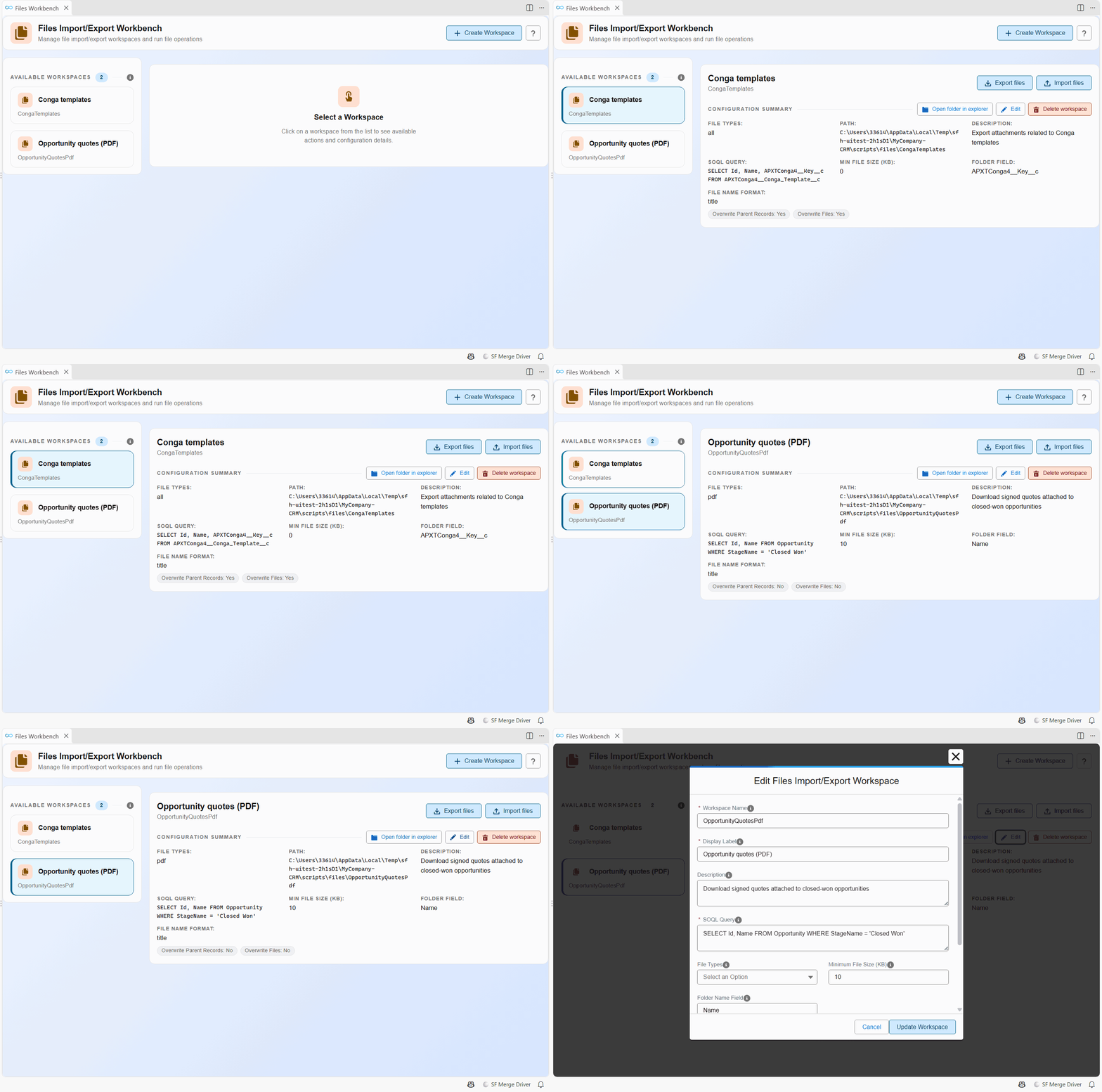
Workspaces live in scripts/files/<workspace>/export.json of your project, and the files they export land in the same folder.
Open it
- Click Files Workbench in the Files Import/Export menu of the side bar.
- Click the Files Workbench card of the Welcome panel.
Find your way around
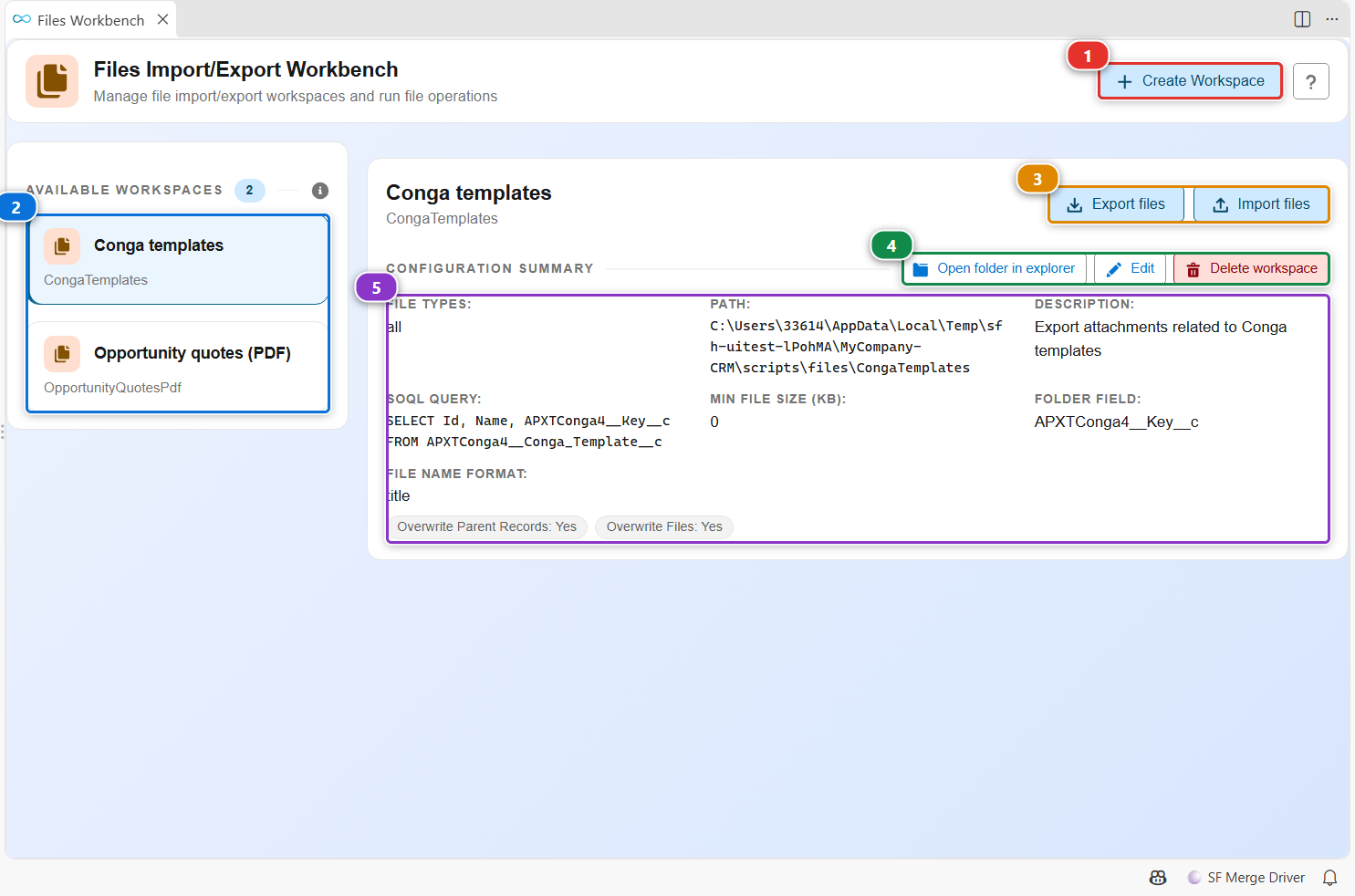
- (2) lists the workspaces of the project. Click one to see its configuration (5).
- (3) runs it: Export files downloads the files of the matching records from an org, Import files uploads them to another org. Each one asks for the org.
- (4) opens the workspace folder, edits the workspace or deletes it.
- (1) creates a workspace.
Create a workspace
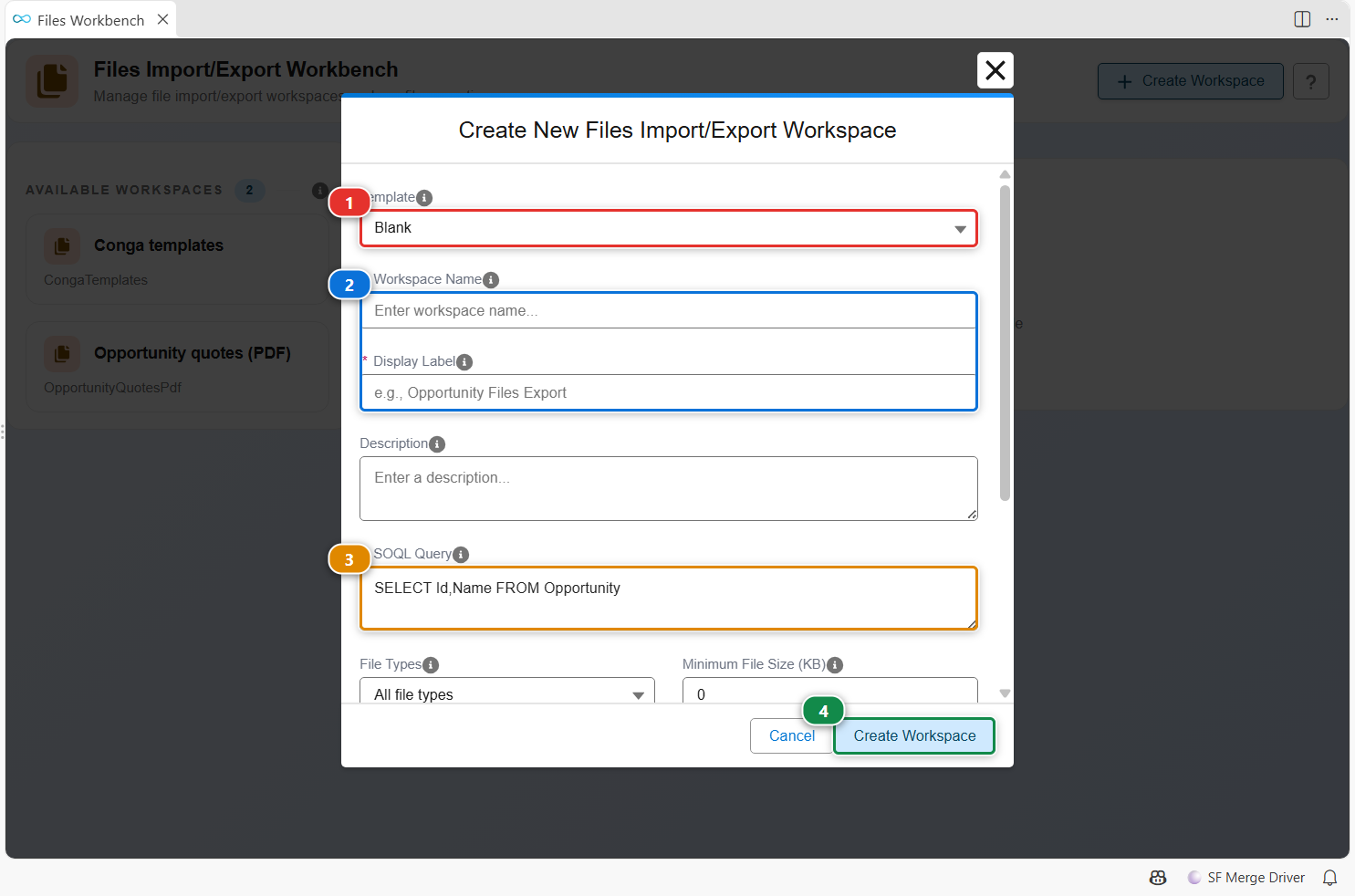
- Click Create Workspace, then start from a template (1) or keep Blank.
- Give it a folder name and a label (2).
- Write the SOQL query of the parent records in (3), for example
SELECT Id, Name FROM Opportunity WHERE StageName = 'Closed Won'. Their files are the ones exported. - Scroll down to choose the file types, the minimum size, the field used to name each folder and the format of the file names.
- Click (4).
Edit a workspace
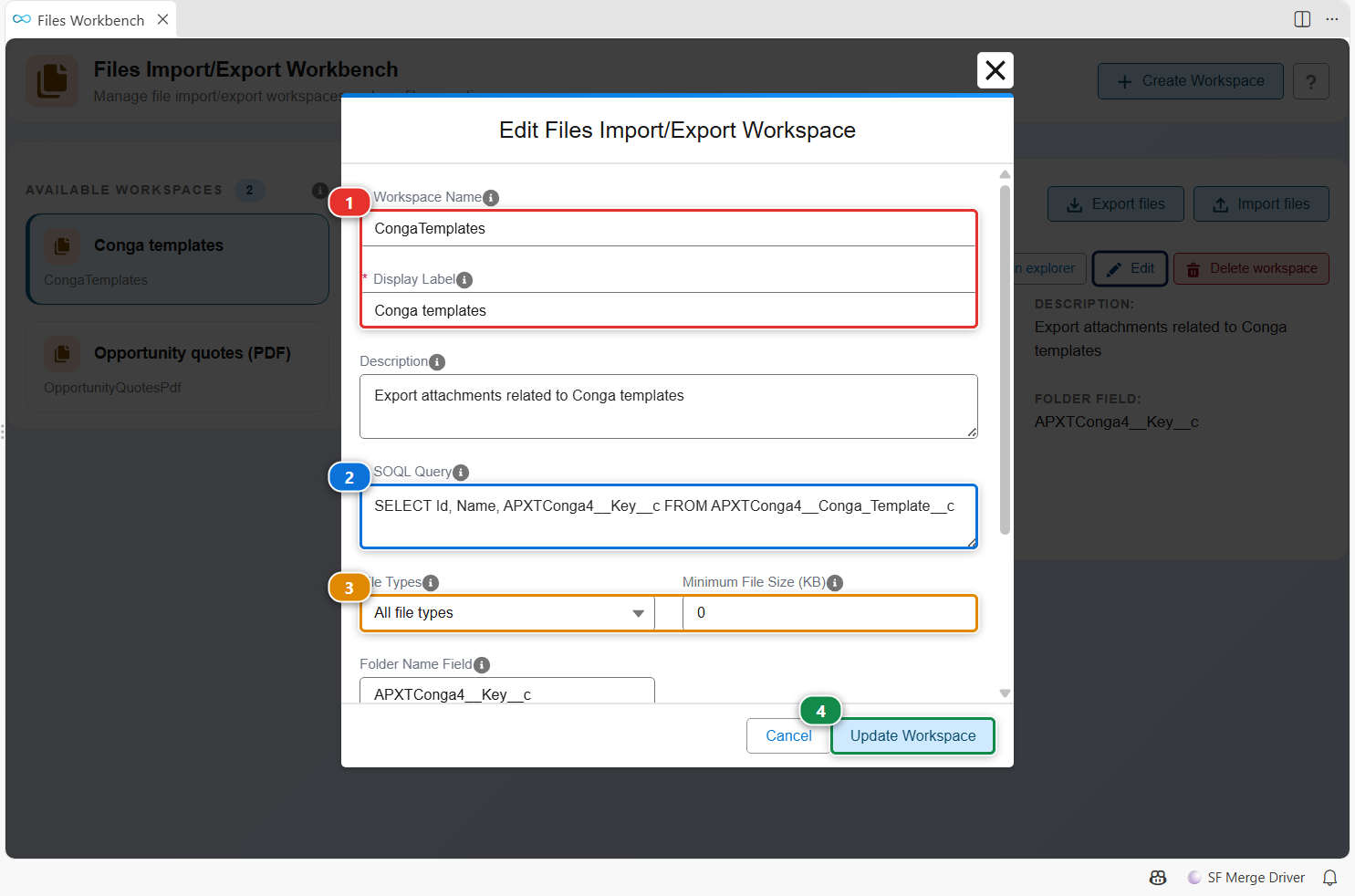
Select the workspace, then click Edit. You change the same settings as at creation: the name and label (1), the query (2), the file types and the minimum size (3), then the naming and overwrite options further down. Click (4) to save.
Customize
| What | Where |
|---|---|
| Your workspaces | scripts/files/<workspace>/export.json, edited by the workbench or by hand |
| Run a workspace from a terminal or a pipeline | hardis:org:files:export, hardis:org:files:import |