hardis:org:files:import
Description
This command facilitates the mass upload of files into Salesforce, allowing you to populate records with associated documents, images, or other file types. It's a crucial tool for data migration, content seeding, or synchronizing external file repositories with Salesforce.
Key functionalities:
- Configuration-Driven Import: Relies on an
export.jsonfile within a designated file export project (created usingsf hardis:org:configure:files) to determine which files to import and how they should be associated with Salesforce records. - Interactive Project Selection: If the file import project path is not provided via the
--pathflag, it interactively prompts the user to select one. - Overwrite Option: The
--overwriteflag allows you to replace existing files in Salesforce with local versions that have the same name. Be aware that this option doubles the number of API calls used. - Support for ContentVersion and Attachment: Handles both modern Salesforce Files (ContentVersion) and older Attachments.
See this article for how to export files, which is often a prerequisite for importing:

Technical explanations
The command's technical implementation involves:
- FilesImporter Class: The core logic is encapsulated within the
FilesImporterclass, which orchestrates the entire import process. - File System Scan: Scans the local file system within the configured project directory to identify files for import.
- Salesforce API Interaction: Uses Salesforce APIs (e.g., ContentVersion, Attachment) to upload files and associate them with records.
- Configuration Loading: Reads the
export.jsonfile to get the import configuration, including SOQL queries to identify parent records for file association. - Interactive Prompts: Uses
selectFilesWorkspaceto allow the user to choose a file import project andpromptsfor confirming the overwrite behavior. - Error Handling: Includes mechanisms to handle potential errors during the import process, such as API limits or file upload failures.
Agent Mode
Use --agent to disable all prompts. Typical usage:
sf hardis:org:files:import --agent --path ./my-files-project --target-org myOrg
- Overwrite confirmation prompt is skipped; files are imported with overwrite enabled by default.
- The
--pathflag is required in agent mode (no interactive workspace selection).
Screenshots
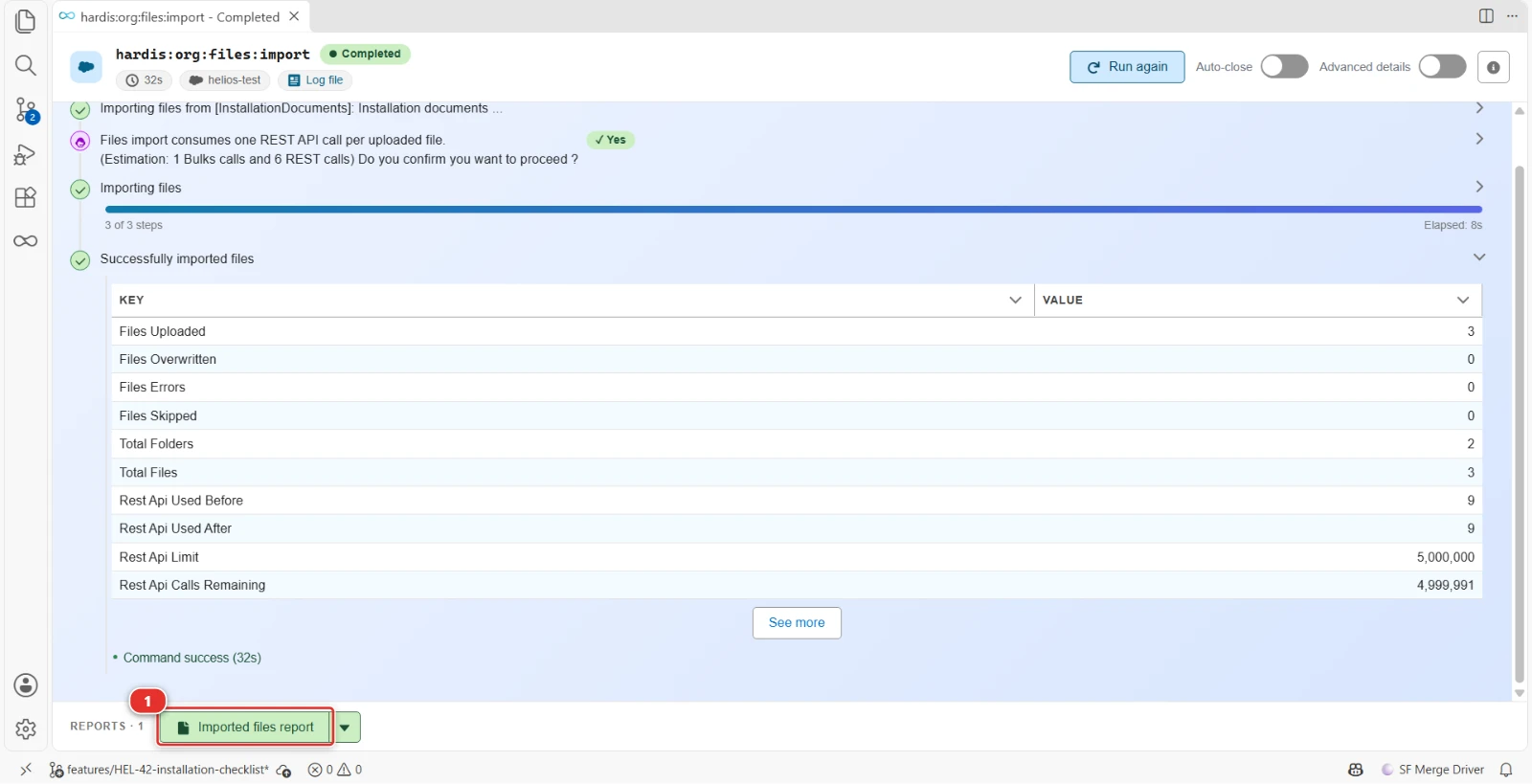
The documents of two installations uploaded from the project folder to the matching records
- (1) The report of the run: the button opens it in Excel, the arrow lists its other files
Parameters
| Name | Type | Description | Default | Required | Options |
|---|---|---|---|---|---|
| agent | boolean | Run in non-interactive mode for agents and automation | |||
| debug -d |
boolean | Activate debug mode (more logs) | |||
| flags-dir | option | Import flag values from a directory. | |||
| json | boolean | Format output as json. | |||
| overwrite -f |
boolean | Override existing files (doubles the number of API calls) | |||
| path -p |
option | Path to the file export project | |||
| skipauth | boolean | Skip authentication check when a default username is required | |||
| target-org -o |
option | Username or alias of the target org. Not required if the target-org configuration variable is already set. |
true | ||
| websocket | option | Websocket host:port for VsCode SFDX Hardis UI integration |
Examples
$ sf hardis:org:files:import
$ sf hardis:org:files:import --agent --path ./my-files-project