Manual step
Manual step
One of the types of deployment actions, YAML type: manual. That page explains what all types share: when actions run, how to choose their target orgs, how they are tracked and how to recover a failed one.
Some things cannot be automated: activating a feature that has no API, warning a team, checking an external system. A manual step describes what must be done. sfdx-hardis reminds the right person at the right time, in the Pull Request comments, with a checkbox to tick once it is done.
Before declaring a manual step, check whether it can be scripted: a setting that can be changed with an sf command, an Apex anonymous script or a data load belongs in a command, Apex or data action, which runs by itself in every org. Keep manual for what really needs a human.
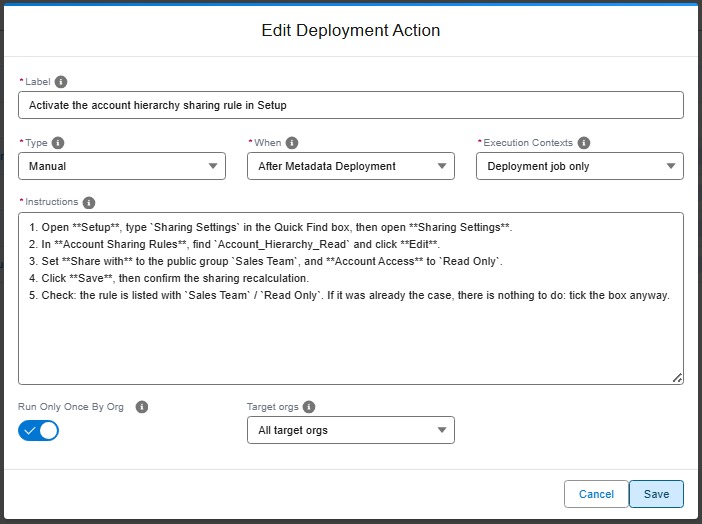
Write the instructions click by click
A manual step is performed several times: in integration, then uat, then preprod, then production, sometimes months apart, often by a different person each time. When a manual step goes wrong, it is rarely the action itself: it is a one-line description that assumed the reader already knew which setting and which value.
So the rule is: describe the manual action as if it was for someone who does not know Salesforce at all. Good instructions say:
- the exact Setup path, starting from the Quick Find box,
- the exact name of the item to change (field, setting, named credential, user, permission set...),
- the exact value to set, per org if it differs,
- how to check that it worked,
- what to do if it is already done (usually: nothing, tick the box anyway).
No need to say in which orgs the step applies: that is the job of the Target orgs field of the action (see Choose the target orgs), and the status matrix shows who still has to do it where.
The release manager reads the manual steps when reviewing the Pull Request, and rejects it when a step is not replayable by someone else (see Validate a Pull Request).
Technical: manual action (YAML)
The Pull Request comments show the instructions (rendered as markdown) and an unchecked box. Once the operator has performed the action, they tick the box: the next job records the action as done for the org branch and skips it from then on (see Track what has been done).
| Custom parameter | Description | Example |
|---|---|---|
parameters.instructions |
Human-readable instructions or checklist for the operator/reviewer, in markdown format. Use a YAML block to preserve formatting. |
Too short: which named credential? what is the expected value? how do I know it worked?
- id: 86cb1653-4072-4f32-b956-093130866cff
  label: Check external callback URL
  type: manual
  parameters:
    instructions: Check that the callback URL is correct in Named Credentials.
  context: process-deployment-only
Click by click: anyone can replay it in uat, preprod or production.
- id: 86cb1653-4072-4f32-b956-093130866cff
  label: Set the ERP callback URL in Named Credential ERP_Callback
  type: manual
  parameters:
    instructions: |
      1. Open **Setup**, type `Named Credentials` in the Quick Find box, then open **Named Credentials**.
      2. Click **ERP_Callback**, then **Edit**.
      3. Set **URL** to the value of the org you are in (ask the integration team if it is not in the list):
         - uat: `https://erp-uat.example.com/callback`
         - preprod: `https://erp-preprod.example.com/callback`
         - production: `https://erp.example.com/callback`
      4. Click **Save**.
      5. Check: open **ERP_Callback** again, the URL shown is the one of the list above.
         If it was already correct, there is nothing to do: tick the box anyway.
  context: process-deployment-only
Learn by doing
The free Salesforce DevOps with sfdx-hardis course does this, click by click, on an org of your own: