Deployment actions
Deployment actions
What are deployment actions?
Deploying a User Story is not always just about metadata. Sometimes something else must happen around the deployment: load reference records, run an Apex script, publish an Experience Cloud site, schedule a batch job, or simply remind someone to activate a setting in Setup.
Deployment actions let you declare these steps once, together with your Pull Request. sfdx-hardis then runs them automatically in every org your work is deployed to (integration, uat, preprod, production...), in the right order, exactly once per org, and keeps a visible record of what has been done where. Even the steps a human must perform are declared the same way, so they are replayed identically from one org to the next instead of living in someone's memory or in a chat message.
You can automate (or track) the following kinds of steps:
- Run a command
- Import data (SFDMU)
- Run an Apex script
- Publish an Experience Cloud site
- Schedule an Apex batch
- Remove items from package.xml
- Manual step (something a person must do)
Need something this list does not cover? Package your own node, python or bash script as a custom function, and use it as an action type of your project.
Actions can be attached to a Pull Request (they follow your User Story from org to org) or to the whole project (they run at every deployment).
Manage your actions from VS Code
Everything can be done with clicks in the VS Code SFDX Hardis extension, from the DevOps Pipeline panel:
-
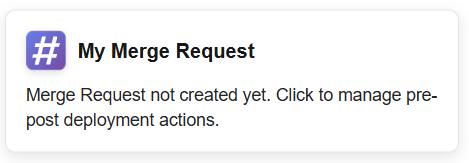
Open the DevOps Pipeline and click the My Pull Request card.
-
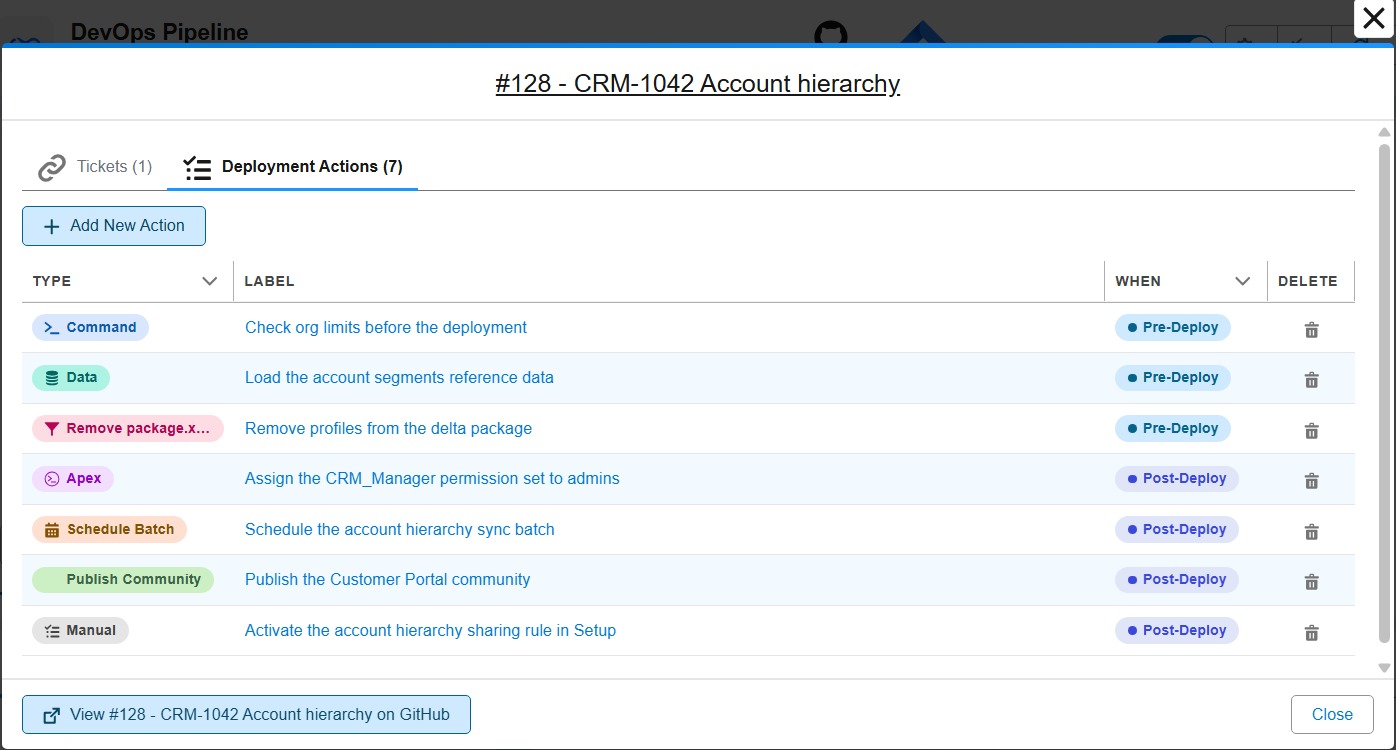
In the window that opens, go to the Deployment Actions tab. It lists the actions already attached to your Pull Request (Merge Request on GitLab), with their type and when they run.
-
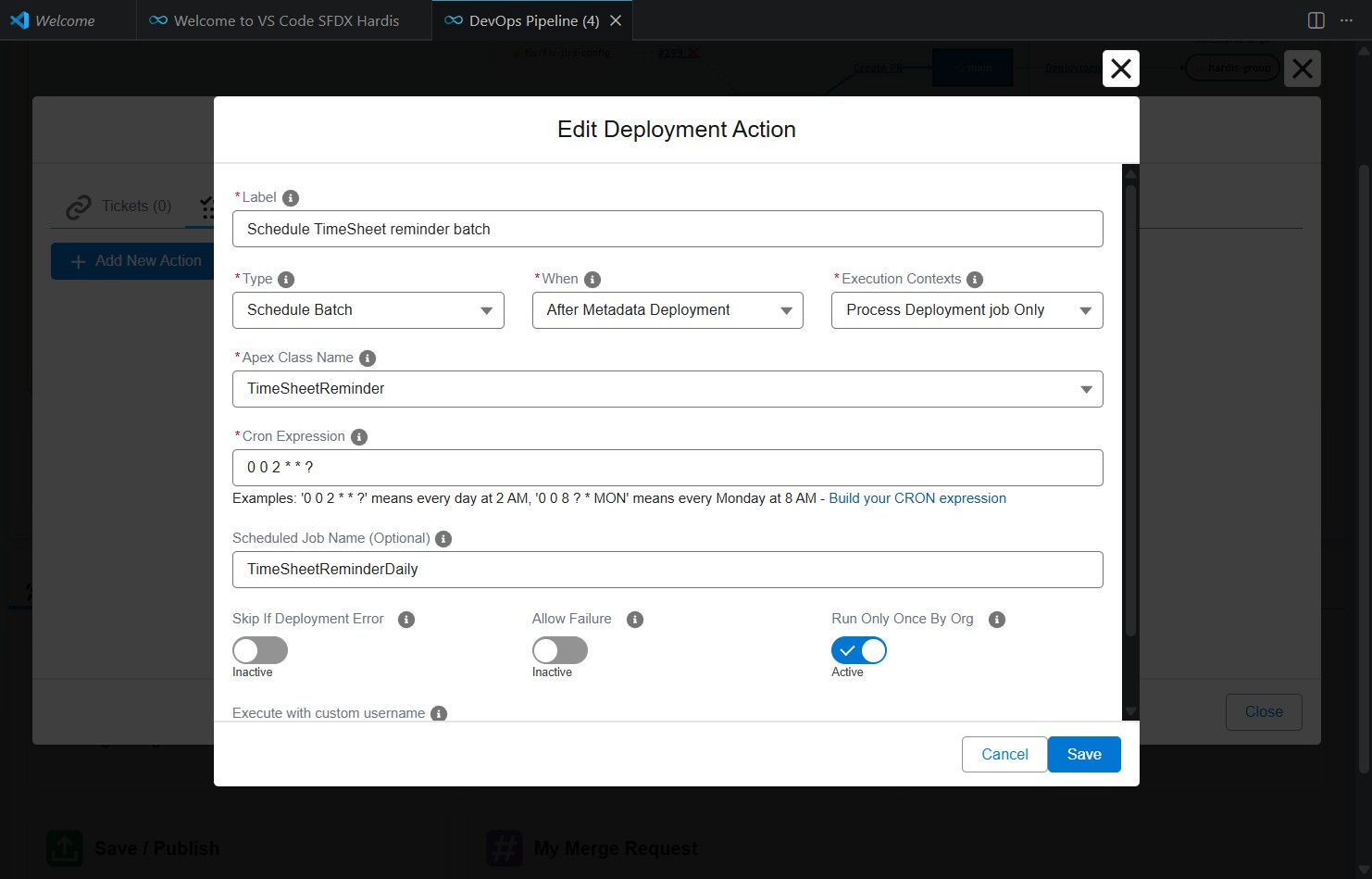
Click Add New Action to create an action, or click an existing action to view and edit it.
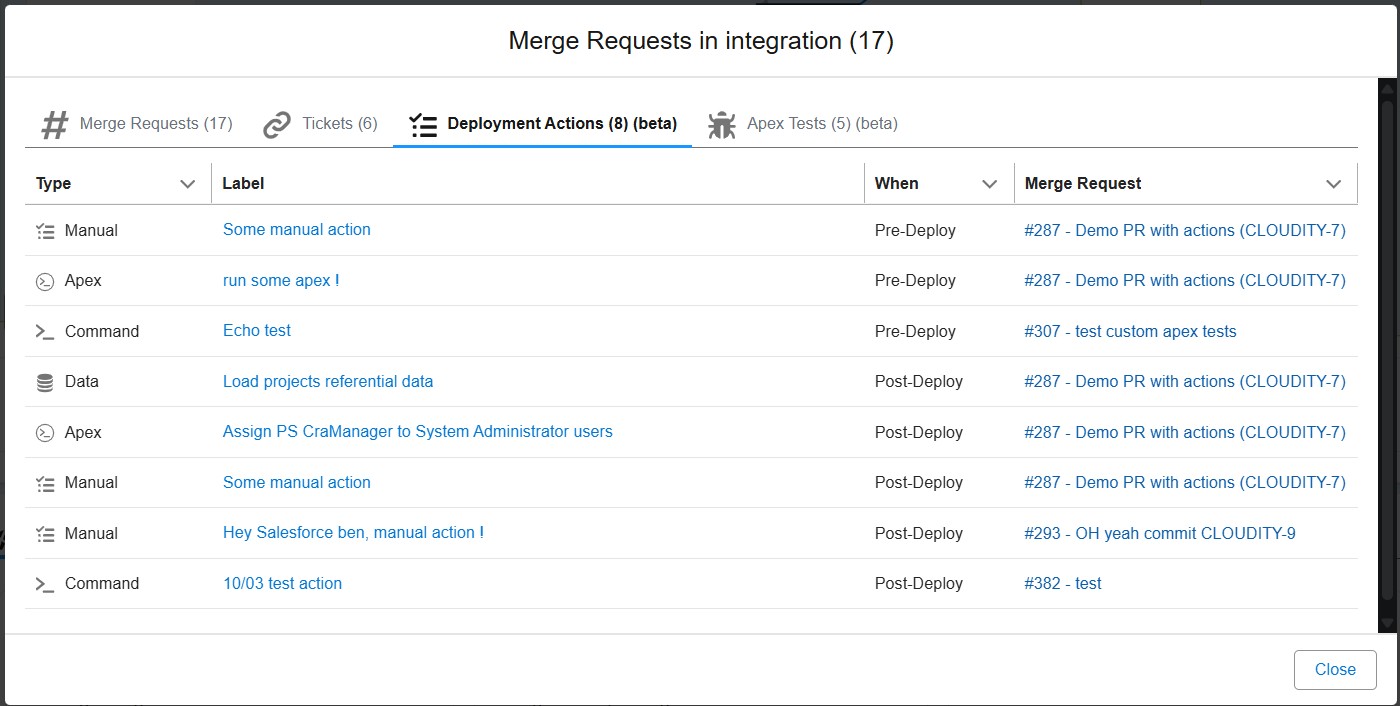
Deployment actions are declared on the Pull Requests of User Stories (feature or fix branches). A Pull Request between two major branches, like a promotion from integration to uat, carries no action of its own: its Deployment Actions tab lists, read-only, the actions of the User Story Pull Requests it brings along, with their author and Pull Request.
You can also review the deployment actions of already merged Pull Requests: click a major branch (like integration) in the pipeline diagram, then open its Deployment Actions tab.
Technical: where actions are stored (YAML)
Actions are stored in properties commandsPreDeploy / commandsPostDeploy of .sfdx-hardis.yml config files. The VS Code extension reads and writes these files for you. Create each action with it, or with hardis:project:action:create: both generate the id of the action. When you edit a file by hand, never write or change an id: it links the action to its state in the Pull Request comments.
- Pull Request level:
scripts/actions/.sfdx-hardis.<PR_ID>.yml(ex:scripts/actions/.sfdx-hardis.372.yml). - Repository level:
config/.sfdx-hardis.yml
Example of a Pull Request level configuration file defining pre-deploy and post-deploy actions:
# scripts/actions/.sfdx-hardis.372.yml
commandsPreDeploy:
  - id: 00de1479-8639-46a2-96e1-88cfa69be4db
    label: Run initialization apex
    type: apex
    parameters:
      apexScript: scripts/apex/init.apex
    context: process-deployment-only
  - id: 47f666ba-944c-4721-9127-a08f51fb0a6c
    label: Remove KnowledgeUser flag
    type: command
    command: >-
      sf data update record --sobject User --where "UserPermissionsKnowledgeUser='true'" --values "UserPermissionsKnowledgeUser='false'" --json
    context: all

commandsPostDeploy:
  - id: f150d991-ecec-460a-8a0e-5f2db77ded60
    label: Import email templates
    type: data
    parameters:
      sfdmuProject: EmailTemplate
    context: process-deployment-only
  - id: 3d700b21-4916-4344-ac46-67919081a008
    label: Publish Experience site
    type: publish-community
    parameters:
      communityName: "My Experience Site"
    context: process-deployment-only
Each action is an object with the following required and optional properties.
| Field | Type | Required? | Description |
|---|---|---|---|
id |
string | Yes | Generated when the action is created. Never write it or change it by hand: it links the action to its tracked state. |
label |
string | Yes | Human-readable description of the action. |
type |
string | Yes | One of command, data, apex, publish-community, schedule-batch, run-batch, remove-packagexml-items, manual. |
context |
string | Yes | When the action should run. Allowed values: all (default), check-deployment-only, process-deployment-only. |
command |
string | No | Shell command to run (used by command type). |
parameters |
object | No | Parameters of the action (see action types) |
customUsername |
string | No | Run the action with a specific username instead of the default target org. |
includeTargetBranches |
array | No | Run the action only when the deployment targets one of these branches. See Choose the target orgs. |
excludeTargetBranches |
array | No | Run the action on every target branch except these ones. See Choose the target orgs. |
allowFailure |
boolean | No | If true and the action fails, the deployment continues and the action is reported as a warning (⚠️) instead of a failure. It runs again on the next deployment, like a failed action. |
runOnlyOnceByOrg |
boolean | No | Default: true. If true, the action runs only once per target org. Execution state is tracked in a dedicated "Deployment Actions" PR comment (see below), no Salesforce custom object required. |
movedFrom |
integer | No | Number of the Pull Request the action was moved from, to fix its definition after it failed. See Recover a failed action. |
When do they run?
For each action you choose two simple things, visible in the editor:
- When: before or after the metadata deployment.
- Execution Contexts: run it during validation jobs (the simulated deployment when the Pull Request is checked), during deployment jobs (the real deployment after the merge), or both.
By default, an action runs only once per org: once it has been performed in uat, it will not run there again, but it will still run in preprod and production when your work gets promoted. A failed action runs again at the next deployment that carries its Pull Request: in practice, the promotion to the next org. To fix it in the org where it failed, see Recover a failed action. Manual steps wait until someone confirms them (see below).
Post-deployment actions are never run when the metadata deployment failed. They are proposed again during the next successful deployment.
Technical: execution contexts, run-once tracking and Pull Request scope
Execution contexts map to the context property: all (default), check-deployment-only (validation job of the Pull Request), process-deployment-only (real deployment after merge).
runOnlyOnceByOrg: skip-on-next-run logic
When runOnlyOnceByOrg is true (the default), the "Deployment Actions" PR comment is used as the state store:
- If the table already contains a ✅
successrow for(actionId, orgBranch), the action is skipped with a ⚪ status on subsequent deployments. - ❌
failedentries are always retried on the next run. - Each action is tracked per org independently: the same action will run once in
integrationand once inuat.
Requirements:
- A git provider token must be configured (GitHub:
GITHUB_TOKEN, GitLab:CI_SFDX_HARDIS_GITLAB_TOKEN, Azure DevOps:SYSTEM_ACCESSTOKEN, Bitbucket:CI_SFDX_HARDIS_BITBUCKET_TOKEN). - Without a git provider, actions with
runOnlyOnceByOrg: trueare skipped with a warning (to avoid untracked re-executions). All other actions still run normally; only the PR comment update is skipped.
Opt out by adding runOnlyOnceByOrg: false explicitly on any action that should always run.
Which Pull Requests are in scope
The actions collected for a deployment depend on the branch the merged Pull Request comes from. The validation job of a Pull Request applies the same rule to the Pull Request being checked, so the check comment of a feature Pull Request lists only its own actions.
| Merge | Scope |
|---|---|
From a feature branch (ex: feature/my-story to integration) |
Only the Pull Request that has just been merged |
Between major branches (ex: integration to uat) |
Every Pull Request merged since the previous merge |
From a retrofit branch (ex: retrofit/from-main to integration) |
Every Pull Request merged since the previous merge |
From a promotion branch (Beta) (ex: promotion/uat/preprod/2026-09-06-1430 to preprod), when enablePromotionBranches is set |
The Pull Requests declared in the promotion Pull Request description |
- Between major branches, the batch is every Pull Request merged into the source major branch since its last promotion.
- Into the production branch (which has no promotion target), the batch is every Pull Request carried by the go-live merge itself.
- Pull Requests merged into upstream branches are part of the batch as soon as their commits arrive in the window: a hotfix merged into
mainis collected when a retrofit branch brings it down tointegration, so its actions run there too.
In every case, runOnlyOnceByOrg state tracking makes sure each action runs only in the orgs where it has not been performed yet. The same scope applies to the Apex test classes selected from Pull Requests when enableDeploymentApexTestClasses is active.
The resolved scope is visible in two places:
- In job logs, as a single line:
Pull Request scope: 5 Pull Request(s) (#4491, #4494, ...). Each Running/Skipping line then shows the Pull Request that defines the action. - In the check and deployment Pull Request comments, which state which Pull Requests the deployment actions and Apex test classes were collected from, with links.
If the deployment job of a feature branch fails, its actions are not picked up by the next merged Pull Request. When the metadata deployment itself failed, re-run the failed deployment job. When only an action failed, see Recover a failed action.
Identical actions run once
When several Pull Requests of the same deployment carry the same action, for example five User Stories that each publish the same Experience Cloud site, it runs once. The first one runs, and the others are recorded as done by it on their own Pull Request.
Two actions are the same when they are of the same type, run at the same moment (before or after the deployment) as the same user, with the same parameters: the same command line, Apex script, data workspace, site name... Their labels do not matter. Manual steps are never merged: each Pull Request keeps its own checkbox. An action written twice in the same Pull Request runs twice.
Technical: how identical actions are detected and recorded
What is compared
The type, the phase (commandsPreDeploy or commandsPostDeploy), customUsername, and what the action does, once its ${{ }} references are resolved:
| Type | Compared |
|---|---|
command |
The command line |
apex |
The path of the Apex script |
data |
The data workspace |
publish-community |
The site name |
schedule-batch |
The class, the cron expression and the job name |
run-batch |
The class and the run options, with their defaults applied |
remove-packagexml-items |
The items to remove, whatever their order |
| Custom function | Its input parameters |
manual |
Never merged |
The id, the label, the Pull Request, context, the branch filters, allowFailure and runOnlyOnceByOrg are not compared: whether an action runs in a job is decided before it is compared.
Which one runs
- Only actions of different sources are merged: two Pull Requests, or a Pull Request and the branch or project config. An action written twice in one Pull Request, or twice in the config, runs twice.
- Actions are compared within one job: the validation job, the deployment job, a retry with
sf hardis:project:action:runand a backpromote each run their own. Two copies that run in different jobs both run, for example one withcontext: all(run by the validation job) and one withcontext: process-deployment-only. - The first copy in the deployment order runs: the branch and project actions first, then the Pull Requests from the oldest merge to the newest. When a later Pull Request lists other actions before its copy, they run after the shared action.
- Only a successful run stands for the others. When the first copy fails, even with
allowFailure: true, the next copy runs.
How a copy is recorded
- In the results of the job, a copy is ⚪ skipped:
same action as <label> (#101), run once for this deployment. - In the status matrix of its own Pull Request, it is ✅ done in that org, with a note naming the action that ran. A re-run of the job does not run it again.
- When a failure stops the job, a later copy of an action that already succeeded is recorded as done, not as stopped.
- A copy of a custom function receives the outputs of the action that ran, so
${{ actions.<id of the copy>.outputs.<name> }}keeps working. - The Next promotion mode of the VS Code Deployment Actions tab and the Backpromote panel show which actions run once with an identical one.
Choose the target orgs
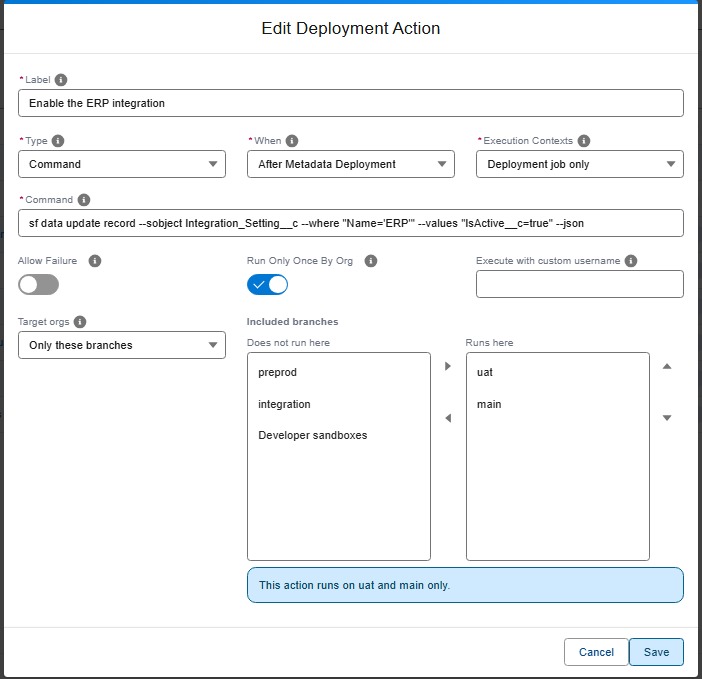
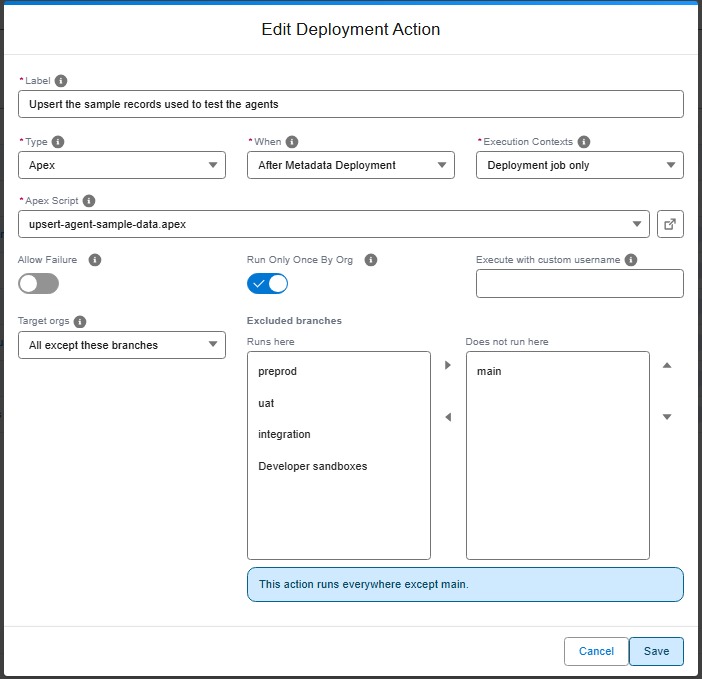
By default, an action runs in every org your work is deployed to. In the editor, the Target orgs field lets you restrict it: run it everywhere, only on some major branches (for example only uat), or everywhere except a few (for example everywhere but production). You can also target developer sandboxes specifically.
Choose Only these branches when the action makes sense in a few orgs only. In the example below, the ERP is connected to the uat and production orgs only, so the action that enables the integration runs in uat and main, and nowhere else.
Choose All except these branches when the action must run everywhere but a few orgs, most often production. In the example below, the Apex script that upserts the sample records used to test the agents runs in every org except main.
Technical: includeTargetBranches / excludeTargetBranches
Two mutually exclusive properties control the target orgs:
includeTargetBranches: the action runs only when the deployment targets one of the listed branches.excludeTargetBranches: the action runs everywhere except on the listed branches.
commandsPostDeploy:
  # Runs on UAT and preprod only
  - id: 6e9749de-d7e7-4e44-8742-f8cae3e2142e
    label: Publish the customer community
    type: publish-community
    parameters:
      communityName: Customer
    context: process-deployment-only
    includeTargetBranches:
      - uat
      - preprod

  # Runs everywhere except production
  - id: 1a4d01e2-7008-4651-9afb-589c280d9b2e
    label: Import demo records
    type: data
    parameters:
      sfdmuProject: DemoData
    context: process-deployment-only
    excludeTargetBranches:
      - main
Branch names are matched exactly, ignoring case. There are no wildcards: list each branch you mean.
The dev-sandboxes virtual branch
A deployment does not always target a major branch. sf hardis:work:backpromote deploys to a developer sandbox, and so does a local sf hardis:project:deploy:start run from a feature branch. In those cases the name dev-sandboxes matches, so you can target developer sandboxes without knowing their branch names:
commandsPreDeploy:
  # Never runs when a developer backpromotes into their own sandbox
  - id: 6c3daad7-9fbc-4bfd-b8fc-587a6fe7ff85
    label: Lock the integration user
    type: apex
    parameters:
      apexScript: scripts/apex/lock-integration-user.apex
    excludeTargetBranches:
      - dev-sandboxes
A target counts as dev-sandboxes when it has no config/branches/.sfdx-hardis.<branch>.yml file. In a repository with no branch config files at all, every deployment therefore counts as a developer sandbox.
Reporting and validation
When an action does not apply to the branch being deployed, it is reported as skipped in the Deployment Actions Pull Request comment with the reason, and no execution state is stored: the action still runs later on a branch it does target. A manual action skipped this way is not added to the manual checklist.
Setting both properties on the same action is a configuration error. sf hardis:project:action:create and sf hardis:project:action:update refuse to save it, and a deployment reading such an action from a YAML file fails with an explicit message.
Action types
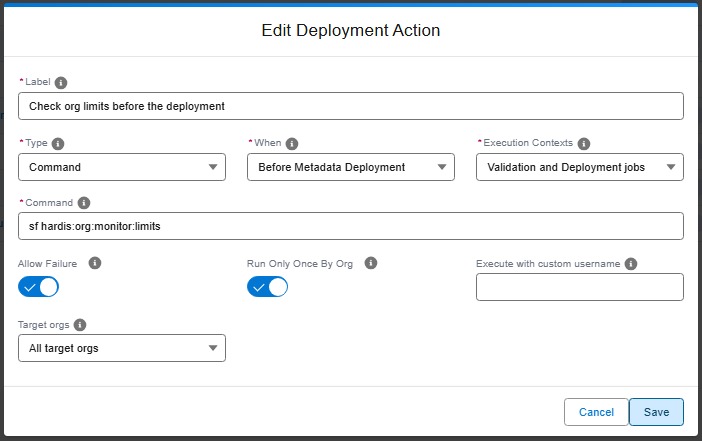
Run a command
Runs any command line (a sf command, a script, anything your CI runner can execute). Use it for the automations that do not fit any other type.
Technical: command action (YAML)
In case of multiple commands, use && to separate them.
| Custom parameter | Description | Example |
|---|---|---|
command |
Command line to run (string). | echo "My custom command" |
- id: 47f666ba-944c-4721-9127-a08f51fb0a6c
  label: Remove KnowledgeUser flag
  type: command
  command: >-
    sf data update record --sobject User --where "UserPermissionsKnowledgeUser='true'" --values "UserPermissionsKnowledgeUser='false'" --json
  context: all
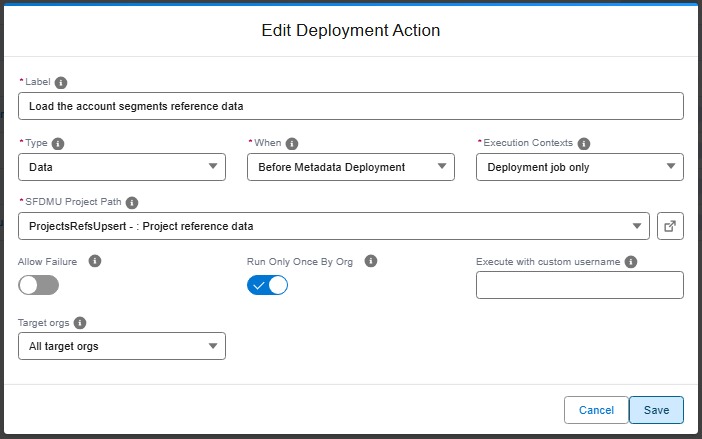
Import data (SFDMU)
Loads records into the target org using one of the SFDMU data workspaces of your project: reference data, email templates, demo records...
Technical: data action (YAML)
Runs a SFDMU import for the specified project name. Typically used post-deploy to load records such as templates or reference data.
| Custom parameter | Description | Example |
|---|---|---|
parameters.sfdmuProject |
Name of the SFDMU project to run. | EmailTemplate |
- id: f150d991-ecec-460a-8a0e-5f2db77ded60
  label: Import email templates
  type: data
  parameters:
    sfdmuProject: EmailTemplate
  context: process-deployment-only
Run an Apex script
Executes one of the .apex script files of your project against the target org. Useful for initialization scripts or migrations, like assigning permission sets or recalculating fields.
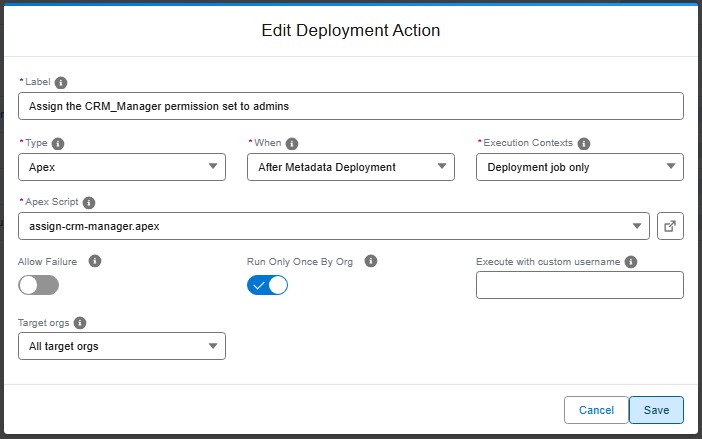
Technical: apex action (YAML)
Executes an Apex script file against the target org using sf apex run --file.
| Custom parameter | Description | Example |
|---|---|---|
parameters.apexScript |
Relative path to the .apex script file in the repository. |
scripts/apex/init.apex |
- id: 00de1479-8639-46a2-96e1-88cfa69be4db
  label: Run initialization apex
  type: apex
  parameters:
    apexScript: scripts/apex/init.apex
  context: process-deployment-only
Publish an Experience Cloud site
Publishes an Experience Cloud (community) site of the target org after the deployment, so your changes become visible to its users.
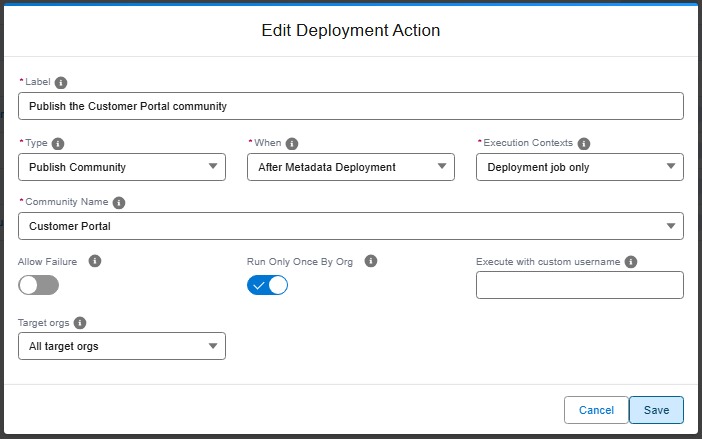
Technical: publish-community action (YAML)
Publishes the specified Experience Cloud (community) site using sf community publish.
| Custom parameter | Description | Example |
|---|---|---|
parameters.communityName |
Name of the community/Experience site to publish. | MyExperienceSite |
- id: 3d700b21-4916-4344-ac46-67919081a008
  label: Publish Experience site
  type: publish-community
  parameters:
    communityName: "My Experience Site"
  context: process-deployment-only
Schedule an Apex batch
Schedules an Apex batch job in the target org, with a cron expression you can build with a click ("every day at 3 AM"...). The class picker proposes the schedulable classes of the org and of the project, and the global schedulable classes of the installed packages.
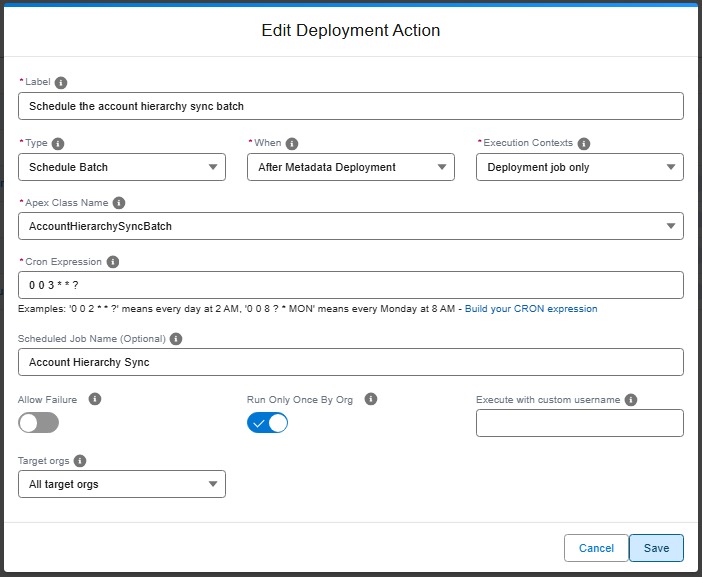
Technical: schedule-batch action (YAML)
Schedules an Apex batch class using System.schedule(). The action verifies that the specified Apex class exists in the org, implements the Schedulable interface, and has a public no-arg constructor. If the class does not meet these requirements, the action fails with a recommendation to use an apex action instead.
The class can come from an installed package. A class of an unlocked package without namespace is named like any other. A class of a managed package is written with its namespace, ns.ClassName, and must be global: a managed package hides every other class, and nothing outside the package can schedule them.
If a scheduled job with the same name and cron expression already exists, the action is skipped (idempotent). If a job with the same name but a different cron expression exists, the action fails so you can resolve the conflict manually.
| Custom parameter | Required? | Description | Example |
|---|---|---|---|
parameters.className |
Yes | Name of the Apex class that implements Schedulable with a public no-arg constructor. |
MyBatchScheduler |
parameters.cronExpression |
Yes | Cron expression for the schedule (Salesforce format). | 0 0 0 * * ? |
parameters.jobName |
No | Name of the scheduled job. Defaults to <className>_Schedule if omitted. |
MyBatch_Nightly |
- id: 1991c08c-a791-4e54-8adb-307ff23b7564
  label: Schedule nightly batch
  type: schedule-batch
  parameters:
    className: MyBatchScheduler
    cronExpression: "0 0 0 * * ?"
    jobName: MyBatch_Nightly
  context: process-deployment-only
Note: If your Schedulable class requires constructor arguments or has a non-public constructor, use an
apexaction with a custom.apexscript instead.
Run an Apex batch
Runs an Apex batch once, right during the deployment: recalculate a field on existing records after a new formula ships, or clean data before the metadata arrives. The class picker proposes the batchable classes of the org and of the project, and the global batchable classes of the installed packages.
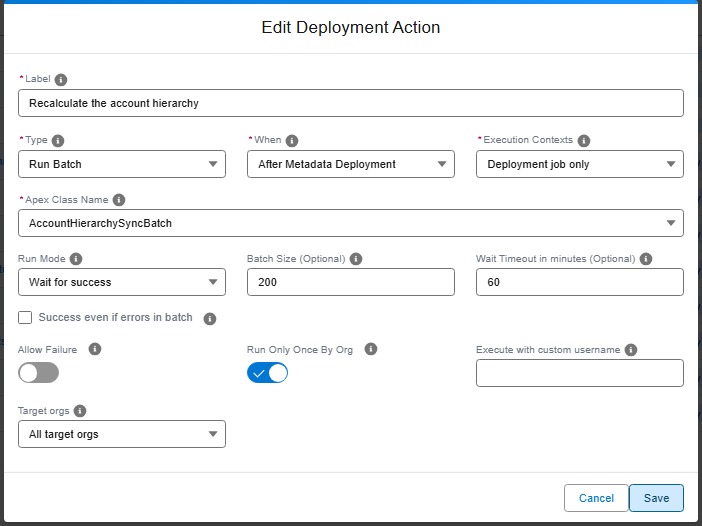
Technical: run-batch action (YAML)
Runs an Apex batch class using Database.executeBatch(). The action verifies that the specified Apex class exists in the org, implements the Database.Batchable interface, and has a public no-arg constructor. If the class does not meet these requirements, the action fails with a recommendation to use an apex action instead.
The action can run before or after the metadata deployment. Before the deployment, the class must already be in the target org: a class shipped by the same Pull Request is only there afterwards.
With runMode: wait, the deployment job follows the batch until it ends:
| Batch result | Action result |
|---|---|
| Completed without error | Success |
| Completed with batches in error | Failed, or success when successEvenIfBatchErrors is true |
| Failed or aborted | Failed |
Not over after waitTimeoutMinutes |
Failed. The batch keeps running in the org |
With runMode: no-wait, the batch is launched and the deployment goes on. Before the deployment, that means the batch may still be running while the metadata deploys.
The action never runs the same batch twice at once. When a job of the class is still running in the org, no other one is launched: in wait mode the action follows that job, in no-wait mode it succeeds right away. When a job of the class completed less than 3 hours ago with a result the action accepts, it stands for this run. That covers a deployment retried after a wait timeout.
A long wait holds the CI/CD job: keep waitTimeoutMinutes below the timeout of your runner.
Like for schedule-batch, a class of a managed package is written with its namespace, ns.ClassName, and must be global.
| Custom parameter | Required? | Description | Example |
|---|---|---|---|
parameters.className |
Yes | Name of the Apex class that implements Database.Batchable with a public no-arg constructor. |
CrewCapacityBatch |
parameters.runMode |
No | wait (default) or no-wait. |
wait |
parameters.batchSize |
No | Number of records per batch, from 1 to 2000. Defaults to 200. | 50 |
parameters.waitTimeoutMinutes |
No | Wait mode only. Minutes to wait for the batch. Defaults to 60. | 30 |
parameters.successEvenIfBatchErrors |
No | Wait mode only. Keeps the action successful when the batch completes with batches in error. | true |
- id: 13334707-29d0-44e7-bd88-725e4097d30d
  label: Recalculate crew capacity
  type: run-batch
  parameters:
    className: CrewCapacityBatch
    runMode: wait
    batchSize: 50
    waitTimeoutMinutes: 30
  context: process-deployment-only
Note: A run-batch action only runs in the
process-deployment-onlycontext: a batch changes the data of the org, so it never runs during a deployment check.
Activate User Access Policies
A deployment always leaves the User Access Policies it contains in Design status, even one that was active in the org before. Their automation stops until someone activates them again in Setup. This action activates them right after the deployment, and can also run Apply To All on them, so the users that already match the criteria get their permission sets, groups and package licenses.
The policy picker proposes the policies of the org and of the project.
Technical: user-access-policy action (YAML)
- Activate (
activate, on by default): the action sets the status of each policy to Active with the Salesforce API, then reads it again to check it. A policy already active is left as it is. When Salesforce refuses, for example for a policy without filter or action, the action fails with the message of Salesforce. - Apply to all users (
applyToAll, off by default): Salesforce has no API for it. The action opens the page of the policy that Preview Users shows, in a headless Chrome, clicks Apply To All, then waits until Salesforce records the run, for 5 minutes at most. That page is not an API: if Salesforce changes it, the action fails and says how to apply the policy by hand.
Apply To All needs Chrome or Chromium on the machine running the job. It is in the sfdx-hardis Docker images. On another image, set PUPPETEER_EXECUTABLE_PATH to its path. Activating alone never needs a browser.
The action runs after the deployment only, and only in the process-deployment-only context: a deployment check deploys nothing. It runs at every deployment by default (runOnlyOnceByOrg: false), because each new deployment of a policy turns it off again. With applyToAll, that also means a new Apply To All at each deployment: set runOnlyOnceByOrg: true when once per org is enough.
User Access Policies must be enabled in the org: Setup > User Management Settings > User Access Policies, or the userAccessPoliciesEnabled field of the UserManagement settings.
| Custom parameter | Required? | Description | Example |
|---|---|---|---|
parameters.policies |
Yes | Developer names of the policies. | [Sales_Rep_Access] |
parameters.activate |
No | Activates the policies. Defaults to true. |
true |
parameters.applyToAll |
No | Runs Apply To All for each policy, from the Setup page. Defaults to false. |
true |
commandsPostDeploy:
  - id: 0b6c2a43-8f7e-4f0e-9a51-6a3a6d1c2e11
    label: Activate the sales access policies
    type: user-access-policy
    parameters:
      policies:
        - Sales_Rep_Access
        - Sales_Manager_Access
      activate: true
      applyToAll: true
    context: process-deployment-only
    runOnlyOnceByOrg: false
Remove items from package.xml
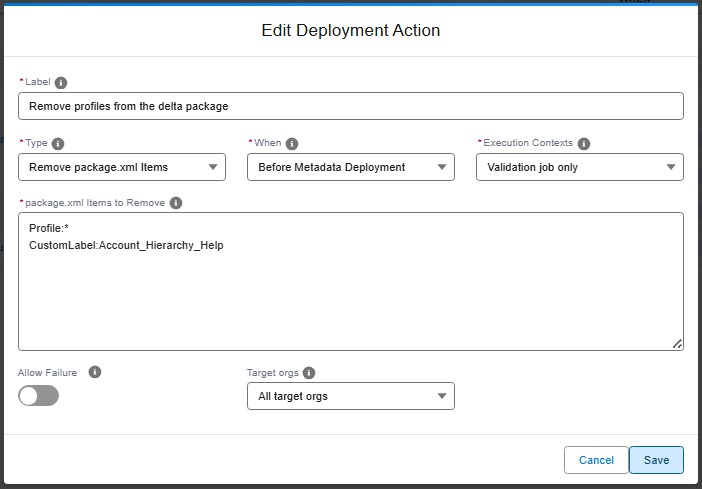
Excludes some metadata from the deployment without touching your repository: the listed items are removed from the calculated package.xml just before deploying. Useful for org-specific components that exist in git but must not reach a given org.
Technical: remove-packagexml-items action (YAML)
Removes metadata items from the package.xml calculated by hardis:deploy:smart, so they are ignored during the metadata deployment step.
Only available as a pre-deploy action. The removal applies to the temporary copies of package.xml used by the deployment, never to the manifest files committed in the repository. It is also compatible with delta deployments: items are removed from the calculated delta package.xml.
runOnlyOnceByOrg is ignored for this action type: since it only alters the current deployment, it runs at every deployment (check and process).
| Custom parameter | Description | Example |
|---|---|---|
parameters.packageXmlItems |
List of items to remove, each in format TypeName:Member1,Member2. Use * as member to remove a whole type. Member names also support glob wildcards (ex: Account*). A single string is also accepted for a single entry. |
ApexClass:MyClass1,MyClass3 |
- id: a803e4c8-4471-48fd-ba14-7cd6c45b8ad1
  label: Remove legacy items from deployment package.xml
  type: remove-packagexml-items
  parameters:
    packageXmlItems:
      - ApexClass:MyClass1,MyClass3
      - Layout:MyLayout1,MyLayout2,MyLayout3
  context: all
Manual step
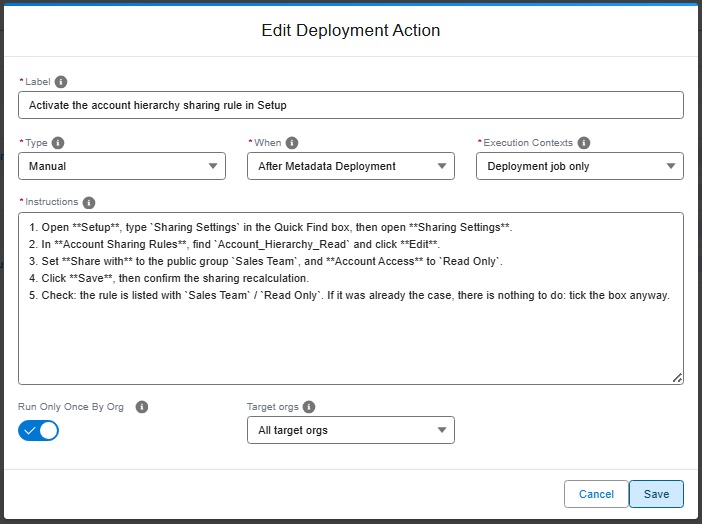
Some things cannot be automated: activating a feature that has no API, warning a team, checking an external system. A manual step describes what must be done. sfdx-hardis reminds the right person at the right time, in the Pull Request comments, with a checkbox to tick once it is done.
Before declaring a manual step, check whether it can be scripted: a setting that can be changed with an sf command, an Apex anonymous script or a data load belongs in a command, Apex or data action, which runs by itself in every org. Keep manual for what really needs a human.
Write the instructions click by click
A manual step is performed several times: in integration, then uat, then preprod, then production, sometimes months apart, often by a different person each time. When a manual step goes wrong, it is rarely the action itself: it is a one-line description that assumed the reader already knew which setting and which value.
So the rule is: describe the manual action as if it was for someone who does not know Salesforce at all. Good instructions say:
- the exact Setup path, starting from the Quick Find box,
- the exact name of the item to change (field, setting, named credential, user, permission set...),
- the exact value to set, per org if it differs,
- how to check that it worked,
- what to do if it is already done (usually: nothing, tick the box anyway).
No need to say in which orgs the step applies: that is the job of the Target orgs field of the action (see Choose the target orgs), and the status matrix shows who still has to do it where.
The release manager reads the manual steps when reviewing the Pull Request, and rejects it when a step is not replayable by someone else (see Validate a Pull Request).
Technical: manual action (YAML)
The Pull Request comments show the instructions (rendered as markdown) and an unchecked box. Once the operator has performed the action, they tick the box: the next job records the action as done for the org branch and skips it from then on (see Track what has been done).
| Custom parameter | Description | Example |
|---|---|---|
parameters.instructions |
Human-readable instructions or checklist for the operator/reviewer, in markdown format. Use a YAML block to preserve formatting. |
Too short: which named credential? what is the expected value? how do I know it worked?
- id: 86cb1653-4072-4f32-b956-093130866cff
  label: Check external callback URL
  type: manual
  parameters:
    instructions: Check that the callback URL is correct in Named Credentials.
  context: process-deployment-only
Click by click: anyone can replay it in uat, preprod or production.
- id: 86cb1653-4072-4f32-b956-093130866cff
  label: Set the ERP callback URL in Named Credential ERP_Callback
  type: manual
  parameters:
    instructions: |
      1. Open **Setup**, type `Named Credentials` in the Quick Find box, then open **Named Credentials**.
      2. Click **ERP_Callback**, then **Edit**.
      3. Set **URL** to the value of the org you are in (ask the integration team if it is not in the list):
         - uat: `https://erp-uat.example.com/callback`
         - preprod: `https://erp-preprod.example.com/callback`
         - production: `https://erp.example.com/callback`
      4. Click **Save**.
      5. Check: open **ERP_Callback** again, the URL shown is the one of the list above.
         If it was already correct, there is nothing to do: tick the box anyway.
  context: process-deployment-only
Track what has been done
After every deployment, sfdx-hardis creates or updates a "Deployment Actions" comment on the Pull Request. At a glance, it shows:
- the manual steps still waiting to be performed, as a checklist: tick a box once you have done the action, and sfdx-hardis records it,
- a status matrix: one row per action, one column per org, so release managers can see in which orgs each action has been performed, has failed, or is still pending.
This works on GitHub, GitLab, Azure DevOps and Bitbucket.
Technical: the Deployment Actions PR comment format
Comment structure: one shared comment per PR, across all CI workflows:
- A one-line verdict: what failed, what waits for a failed action and what is still to do by hand, per org.
- A Needs you checklist: one checkbox per action that failed (❌), was stopped by a failure (⏸️), or is a manual action still to perform (👋), in an org. Ticking it records the action as done, or as closed by hand for a failed one.
- A Status by org matrix: one row per action, one column per org branch.
- A collapsible Action Details section with the action properties (type, context, command or script...) and truncated output per org.
Example of the status matrix:
#### Status by org

| Action                      | When        |          integration           |              uat              |
|-----------------------------|-------------|:------------------------------:|:-----------------------------:|
| Remove KnowledgeUser flag   | pre-deploy  | ✅ 2024-06-01<br/>[12345](...)  | ✅ 2024-06-05<br/>[12890](...) |
| Import email templates      | post-deploy | ✅ 2024-06-01<br/>[12345](...)  | ✅ 2024-06-05<br/>[12890](...) |
| Publish Experience site     | post-deploy | ❌ 2024-06-02<br/>[12501](...)  |               ⬜               |
| Check external callback URL | post-deploy | 👋 2024-06-01<br/>[12345](...) |               ⬜               |

*Legend: ✅ done · ❌ failed · 👋 to do by hand · ⚪ skipped · ⏸️ waits for a failed action · ↪️ moved to another Pull Request · ⬜ not run in this org branch yet*
Columns are ordered from dev to production (integration → uat → preprod → prod), rows follow the deployment order (pre-deploy actions first, then post-deploy). Each cell shows the status icon, the execution date and a link to the CI job that performed the action. The date of the last update is displayed under the matrix. The action id is embedded in each row as an HTML comment for machine parsing. The notes of the Action Details section name who did an action, without their email address: the hidden data of the matrix keeps it.
Status icons:
| Icon | Status | Meaning |
|---|---|---|
| ✅ | success |
Executed successfully (or confirmed as done via its checkbox) |
| ❌ | failed |
Executed but failed, will be retried next run |
| 👋 | manual |
Manual step - waiting for a human to perform it and tick the box |
| ⚪ | skipped |
Skipped (e.g. already run via runOnlyOnceByOrg) |
| ⏸️ | not-run |
Not run because a previous action failed, will be retried next run |
| ↪️ | moved |
Moved to a fix Pull Request (movedFrom), runs from there |
| ⬜ | - | Not run in this org branch yet |
Comments written with the previous format (one row per action and org branch pair) are still parsed, and are migrated to the matrix format on their next update.
Confirming manual actions with checkboxes
Manual action checklists appear in three kinds of Pull Request comments: check results, deployment results, and the Deployment Actions comment. Every checklist item carries a hidden marker identifying the action and the org branch.
When someone ticks one of these checkboxes (in any of the three comments), or the checkbox of a failed action, the next check or deployment job:
- records the action as done for that org branch in the Deployment Actions comment,
- skips it in later deployments to that org (same behavior as a successful
runOnlyOnceByOrgaction), - ticks the same checkbox in the other comments where the action appears, so all views stay consistent.
Block the validation until a pre-deployment manual action is done
A manual action that runs before the metadata deployment must be performed before the merge. By default, the validation job only lists the ones not marked as performed in the target org branch, with a warning. Set failValidationOnPendingManualActions: true in config/.sfdx-hardis.yml to make it stop instead: as long as one is not marked as performed in the target org branch, the validation job of the Pull Request fails right after its pre-deployment actions, before the deployment check, with the list of the actions to perform and the three ways to mark them:
- tick its box in the Needs you list of the Deployment Actions comment, or in the validation comment,
- click Mark as done in
in the VS Code Deployment Actions tab, - or run
sf hardis:project:action:set-status --pr <number> --action-id <id> --org-branch <branch> --status success.
The execution context of such an action is ignored: the validation job lists it even when the action is declared for the deployment job only, because the step has to be done before the merge.
Then run the validation job again: it records the tick and goes on. A draft Pull Request (the draft flag of the git provider, or draft in its title) is never stopped: the job only warns, so the deployment check still runs while the work is in progress. A post-deployment manual action never blocks the validation, since it can only be done after the merge.
This requires the same git provider token as runOnlyOnceByOrg state tracking.
Try your actions in your own org
Before the merge, run the actions of your Pull Request in your own org, a developer sandbox or a scratch org, to check they do what you expect.
From VS Code: open your Pull Request with the My Pull Request card, then its Deployment Actions tab. Each action has a Run in my org button, which reads Rerun once a try in your org failed. It runs in your default org: when that is the org of a major branch, nothing runs.
From the terminal: sf hardis:project:action:run with --action-id, or --all to run them all, pre-deployment actions first, in a developer org.
- Validation-only actions and package.xml item removals are skipped: they only make sense in a deployment. A
runOnlyOnceByOrgaction already done in your org is skipped too. - The result of each action shows under its label: In your org: Done. With a Pull Request, it is also recorded in its "Deployment Actions" comment, under
dev-sandboxes, shared by every developer org: it never counts as done in a major org and never turns the comment red. - Without a Pull Request yet, the results stay on your computer, in
config/user/deployment-actions/draft.json, which git ignores.
Recover a failed action
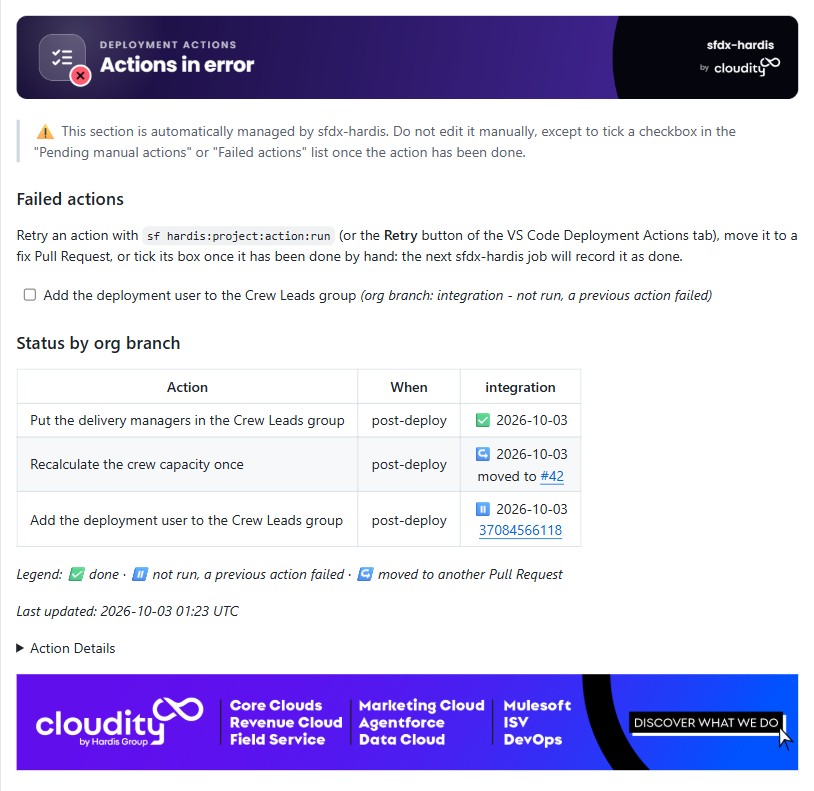
A post-deployment action runs after the metadata deployment, once the Pull Request is merged. When it fails, the metadata is already in the org, the job is red, and the actions after it were not run. The deployment comment says it first, Deployed to integration, but an action failed after the deployment, with the end of the output of the failed action. The "Deployment Actions" comment of the Pull Request lists them under Needs you: ❌ for the action that failed, ⏸️ for the ones its failure stopped.
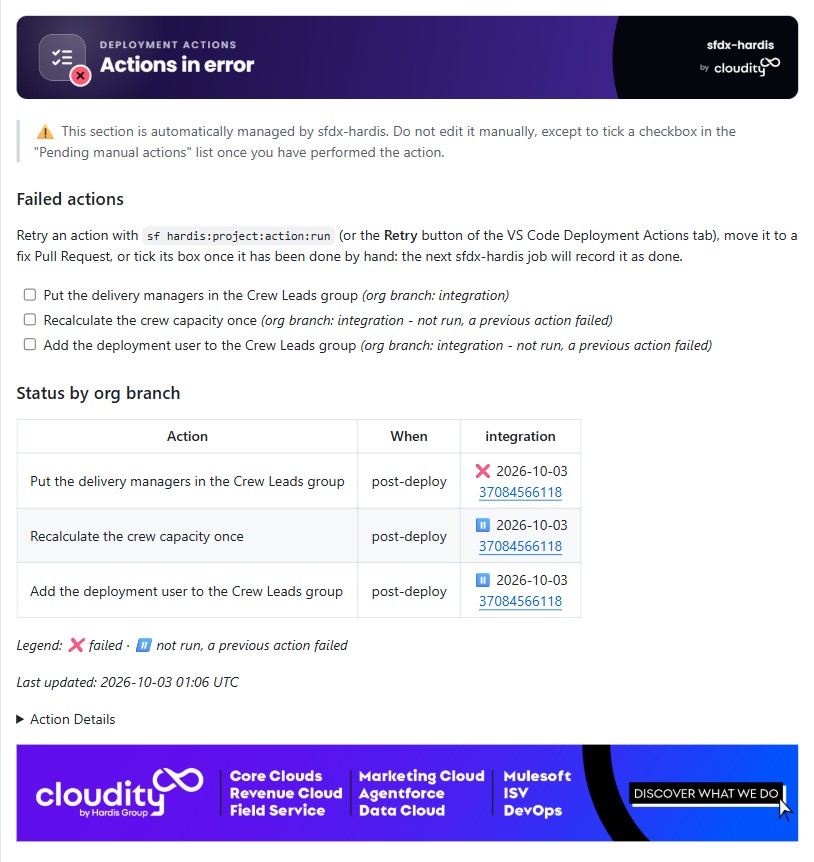
You do not need to re-run the whole deployment job. Pick the way that fits the cause:
| The cause | What to do |
|---|---|
| Something was missing in the org (a record, a permission, a setting), now fixed | Retry the action: it runs again in the org, alone, then you choose whether to run the actions it stopped |
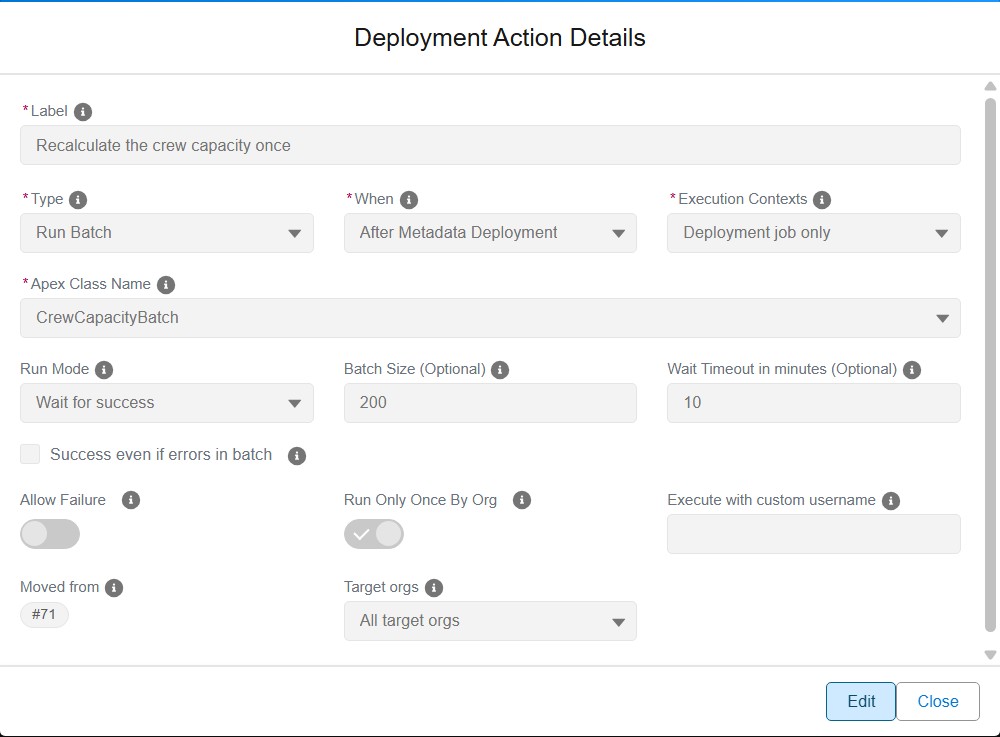
| The action definition is wrong (script path, class name, parameter) | Move it to a fix Pull Request, correct it there, merge: it runs from the fix Pull Request |
| Someone already did it by hand | Mark it as done: it is recorded as done, with who closed it and when, and later deployments to that org skip it |
From VS Code: open the DevOps Pipeline, click the major branch (or the Pull Request), then the Deployment Actions tab. The actions are grouped by Pull Request, in the order they run, with their status in the org of the branch and, for a stopped one, the action that stopped it. The header of each Pull Request counts its actions by status and, when the window lists several Pull Requests, the Total pills above them add up the whole window. Click a Total pill to hide the actions of that status, and click it again to show them. A failed action shows Retry and Mark as done buttons, and the menu at the end of each row holds the rest, Move to my Pull Request included.
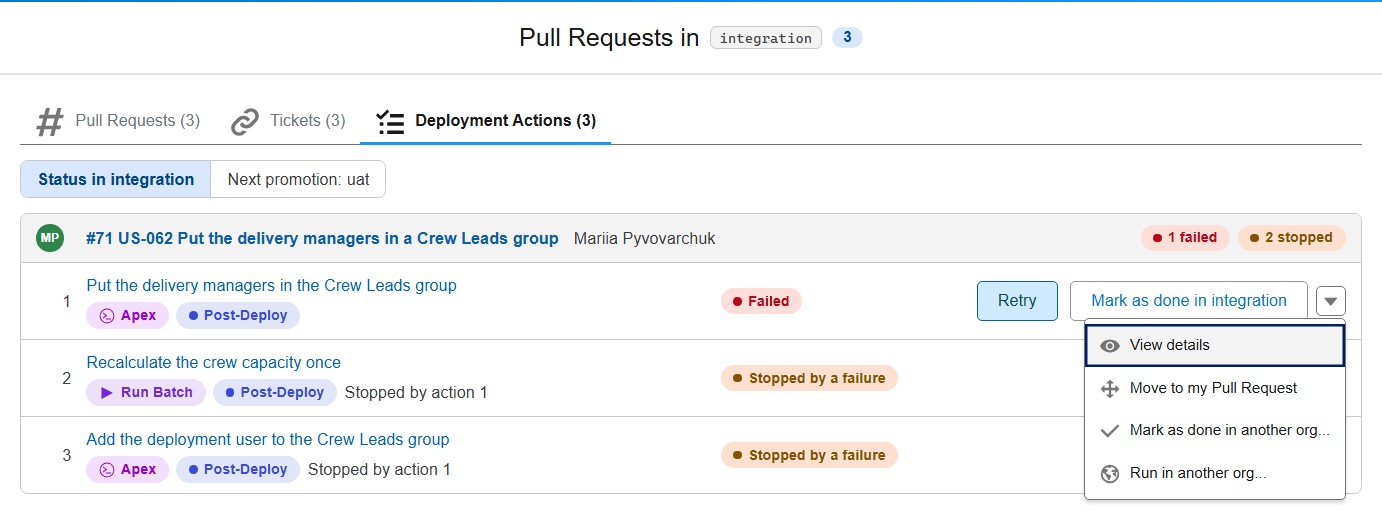
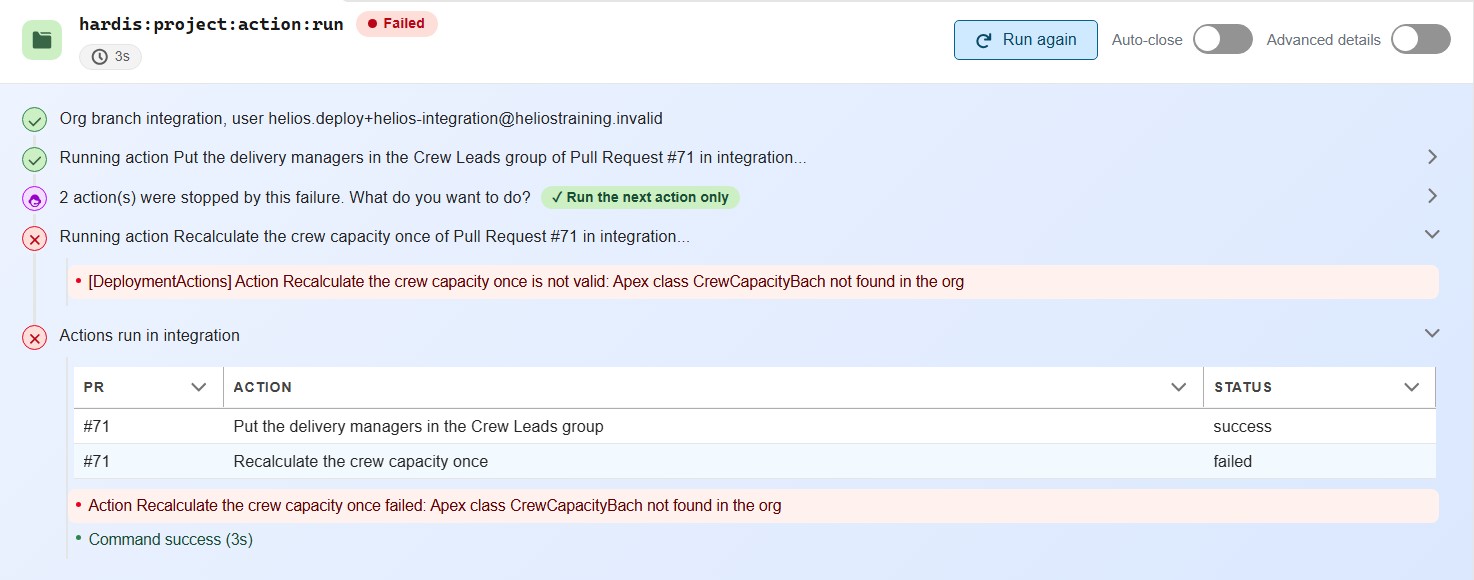
Retry runs the action in the org, then offers to run the actions its failure stopped. Here the first action succeeds, and the next one fails on a wrong class name: that one needs a fix Pull Request.
Mark as done in
Click a status pill to see the action in every org: one line per major branch (status, date, job, note, and a Mark as done button where it is not done yet), then one line per developer sandbox or scratch org that ran it, from the Backpromotes comment of the Pull Request.
In the window of a major branch, the Next promotion: preprod switch (the first merge target of the branch) shows what the promotion will do with each action in preprod: Waiting for you (a pre-deployment manual action, with Mark as done in preprod), After the merge (a post-deployment manual action, to do once the promotion is deployed), Done in preprod, Runs at validation, Runs at deployment, Failed in preprod, Not for preprod (branch filter, validation only), or Not in this promotion when the open promotion Pull Request does not carry its Pull Request. A bar above the actions links the promotion Pull Request and its last job, and the Total pills add up the actions the promotion carries (the Pull Requests it leaves out are not counted). The forecast comes from sf hardis:project:action:list with --forecast.
Mark as done in another org..., in the menu of every action, asks where it was done: a major branch where it is not done yet, before or after the current one, or a developer org authenticated on your computer. Before creating the Pull Request from uat to preprod, mark the pre-deployment manual actions you already did in preprod: its validation and deployment jobs skip them. In a developer org, the action is recorded in the Backpromotes comment for that org, and a backpromote skips it there. A manual action waiting in the org has the same button: it does what ticking its checkbox in the Pull Request comment does, and also names who did it. A failure the action allows (Failed (allowed)) blocked nothing, so its group is not listed first. In the window of a major branch, an action never run in its org, or skipped there, has Run in
Move to my Pull Request moves the action to the Pull Request of your current branch: correct it there. The action editor shows where it comes from.
From the terminal:
- Retry: sf hardis:project:action:run. Without flags, it proposes the recent Pull Requests with failed actions in the org, then their actions. Once the action succeeds, it offers to run only the next stopped action, or all of them.
- Mark as done: sf hardis:project:action:set-status, or tick the checkbox of the action in the Needs you list of the Deployment Actions comment (recorded by the next sfdx-hardis job).
- Move to a fix Pull Request, from your fix branch:
sf hardis:project:action:update --scope pr --pr-id <failed PR> --when post-deploy --action-id <id> --move-to-pr current. The action keeps its id, leaves the file of the original Pull Request and getsmovedFrom: <failed PR>. Correct it, then open and merge the fix Pull Request as usual.
Things to know:
- Anyone authenticated to the org can retry an action, production included. The Pull Request comment says who did it: Run locally by Jane Doe on 2026-10-03 14:05 UTC.
- An action with a
customUsernameruns as that user. When your computer is not authenticated with it, you are asked to log in with it. - The action definition is read from your current branch. When the org is a major org and you are on another branch, you are warned and asked to confirm.
- A pre-deployment action can be run after a confirmation, since in a deployment it runs before the metadata, which is already in the org. When it failed and blocked the deployment, nothing was deployed: re-run the deployment job instead.
- Once an action moved to a fix Pull Request has run, the original Pull Request shows it as ↪️ moved, with a link. When both Pull Requests are promoted together, the action runs once.
 - A git provider token is required to record the result, as for
 runOnlyOnceByOrg.
Disable deployment actions
On some projects you may want to turn the whole feature off: for example when the repository has a very long Pull Request history and the git provider API takes too long to process it, or when your pipelines must not call the git provider at all.
Set the disableDeploymentActions property in config/.sfdx-hardis.yml (or in a branch-scoped config file to disable it only for some target branches):
disableDeploymentActions: true
You can also set the env variable SFDX_HARDIS_DISABLE_DEPLOYMENT_ACTIONS=true on a CI job to get the same result without committing a config change (setting it to false re-enables the feature even if the config property is true).
When disabled:
commandsPreDeployandcommandsPostDeployare not run, whether they are defined in the project / branch config or attached to Pull Requests,- the Pull Request scope is not computed, so no Merge Request history is fetched from the git provider,
- test classes attached to Pull Requests (
enableDeploymentApexTestClasses) are not collected, since they would need the Pull Request scope, - the Deployment Actions comments and manual action checkboxes are neither read nor updated,
- internal actions requested by Pull Request custom behaviors (like
purgeFlowVersionsordestructiveChangesAfterDeployment) are skipped too, with a warning in the job logs.
Learn by doing
The free Salesforce DevOps with sfdx-hardis course does this, click by click, on an org of your own, in these labs:
- Lab 2.3 - Fix broken records with an Apex deployment action
- Lab 2.4 - Ship reference data and a batch with deployment actions
- Lab 2.9 - Capstone: deliver a User Story that has it all
- Lab 3.3 - Read the deployment log, and what .forceignore hides from it