Data Workbench
The Data Workbench is a visual editor for SFDMU workspaces. A workspace describes which records to move: the objects, the SOQL query of each one, the external id used to match records, and the operation (insert, update, upsert...). The workbench writes the export.json for you, then exports, imports or deletes the data in one click.
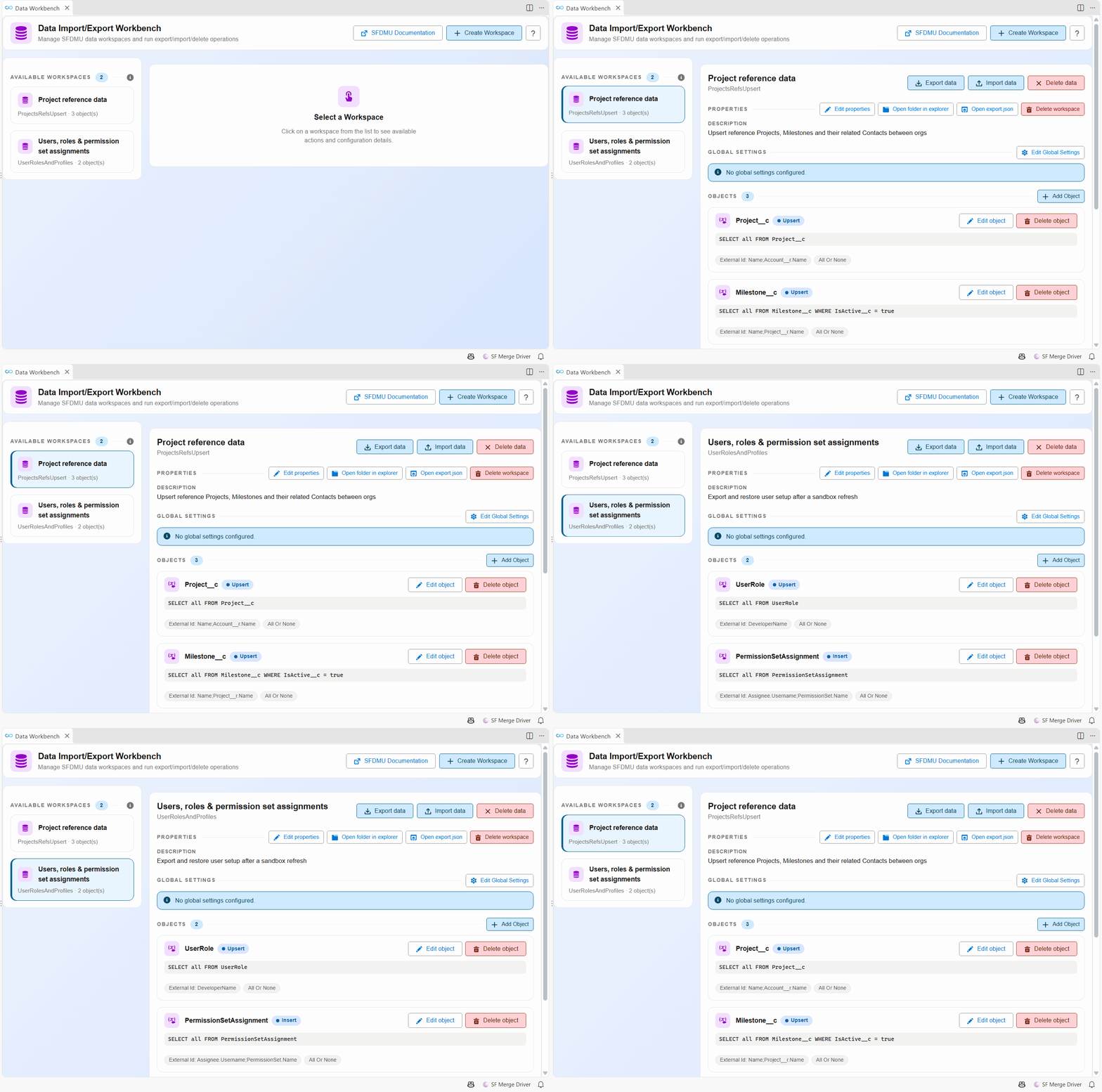
Workspaces live in scripts/data/<workspace>/export.json of your project, so they are shared through git like the rest of your configuration. A deployment action can import a workspace automatically when a Pull Request is deployed.
Open it
- Click Data Workbench in the Data Import/Export menu of the side bar.
- Click the Data Workbench card of the Welcome panel.
Find your way around
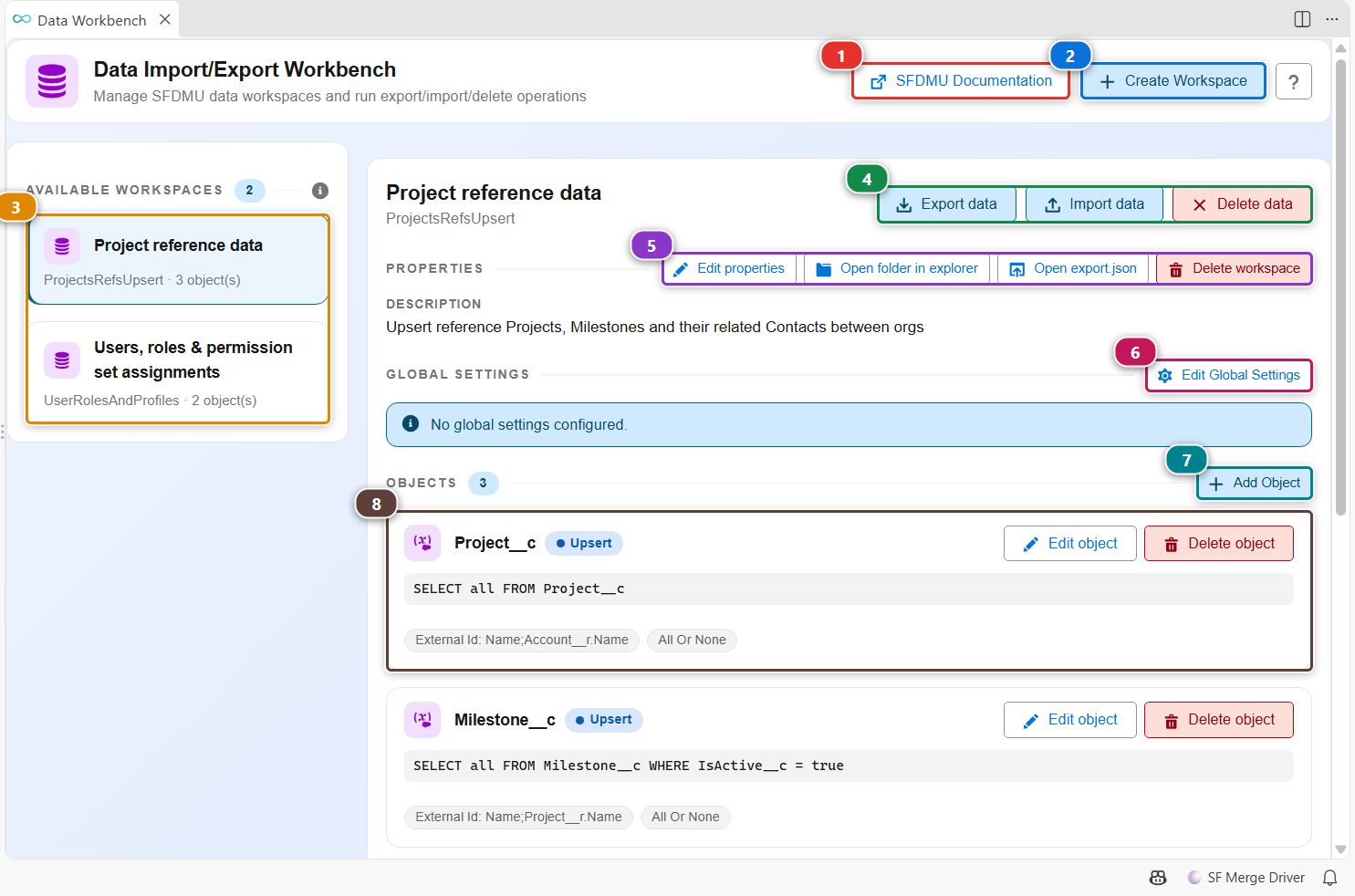
- (3) lists the workspaces of the project. Click one to open it.
- (4) runs the workspace against an org: Export data writes the records of an org as CSV files in the workspace folder, Import data loads those files into an org, Delete data deletes the matching records in an org. Each one asks for the org.
- (5) edits the name and description of the workspace, opens its folder or its
export.json, or deletes it. - (6) opens the settings of the whole workspace (see below).
- (7) adds an object, and (8) shows each object with its query, its operation and its options.
- (1) opens the SFDMU documentation, and (2) creates a workspace.
Create a workspace
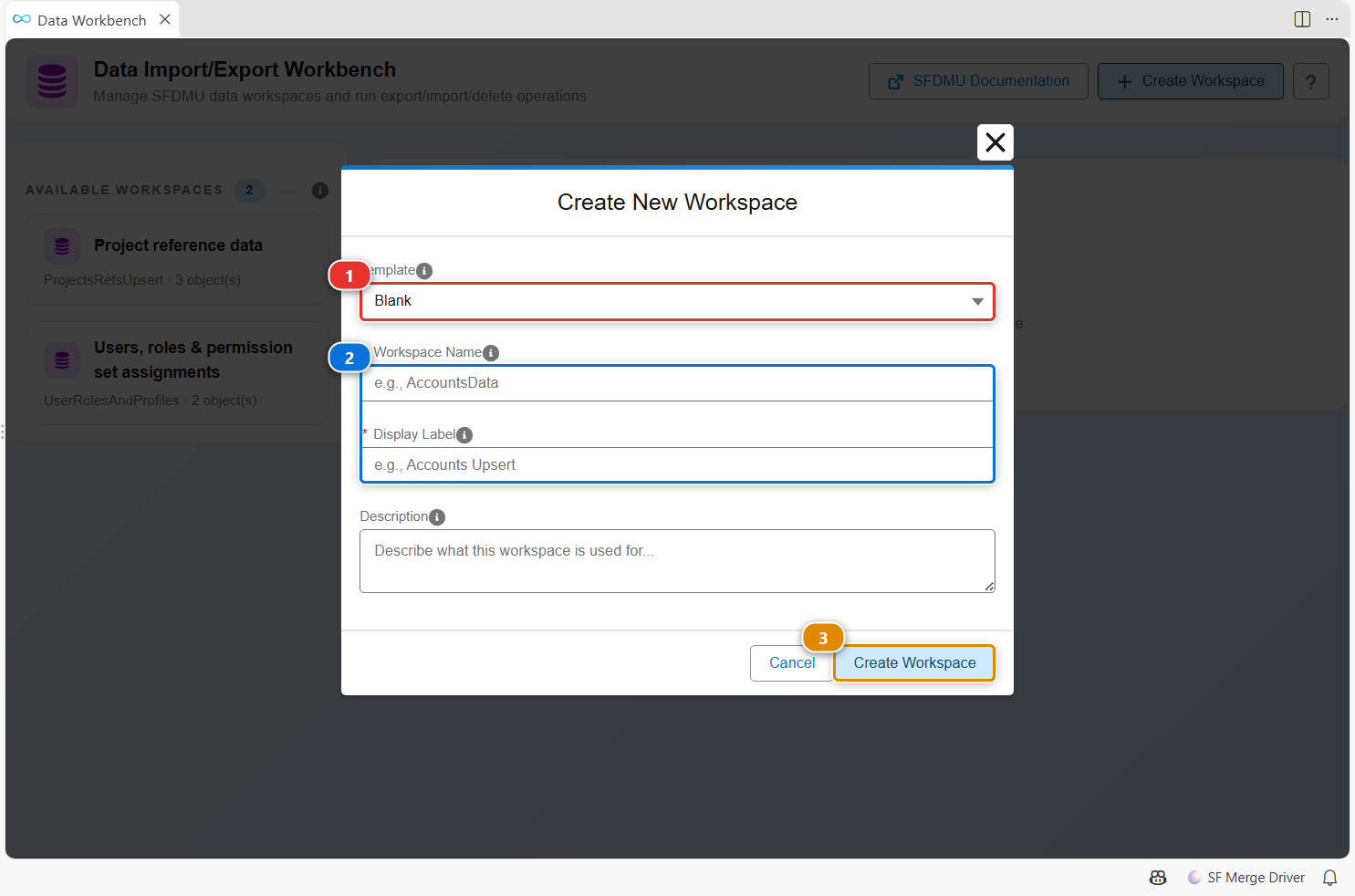
- Click Create Workspace.
- Start from a template in (1), or keep Blank. Templates cover known setups, such as CPQ or Conga configuration, or the anonymization of contact emails.
- Give the workspace a folder name and a label (2). The label is what the list shows.
- Click (3). The workspace appears in the list, ready for its objects.
Add or edit an object
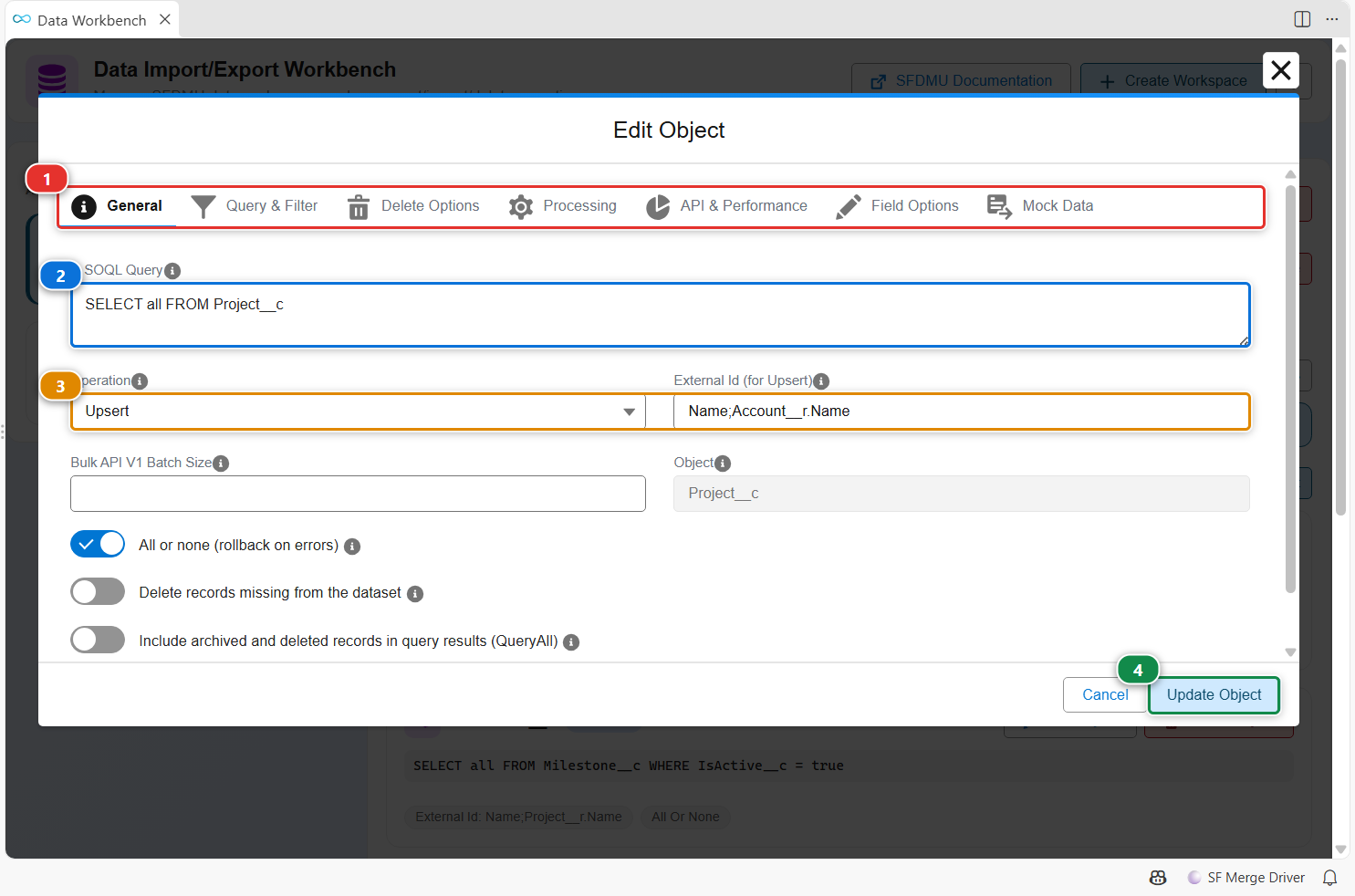
Click Add Object, or Edit object on an existing one.
- The tabs (1) group the SFDMU options of the object: query and filter, delete options, processing, API and performance, field options, mock data for anonymization.
- Write the SOQL query in (2).
SELECT all FROM Project__ctakes every field. - Pick the operation and the external id in (3). For an upsert, the external id is the field, or combination of fields, that identifies the same record in both orgs, for example
Name;Account__r.Name. - Click (4) to save it in
export.json.
Set options for the whole workspace
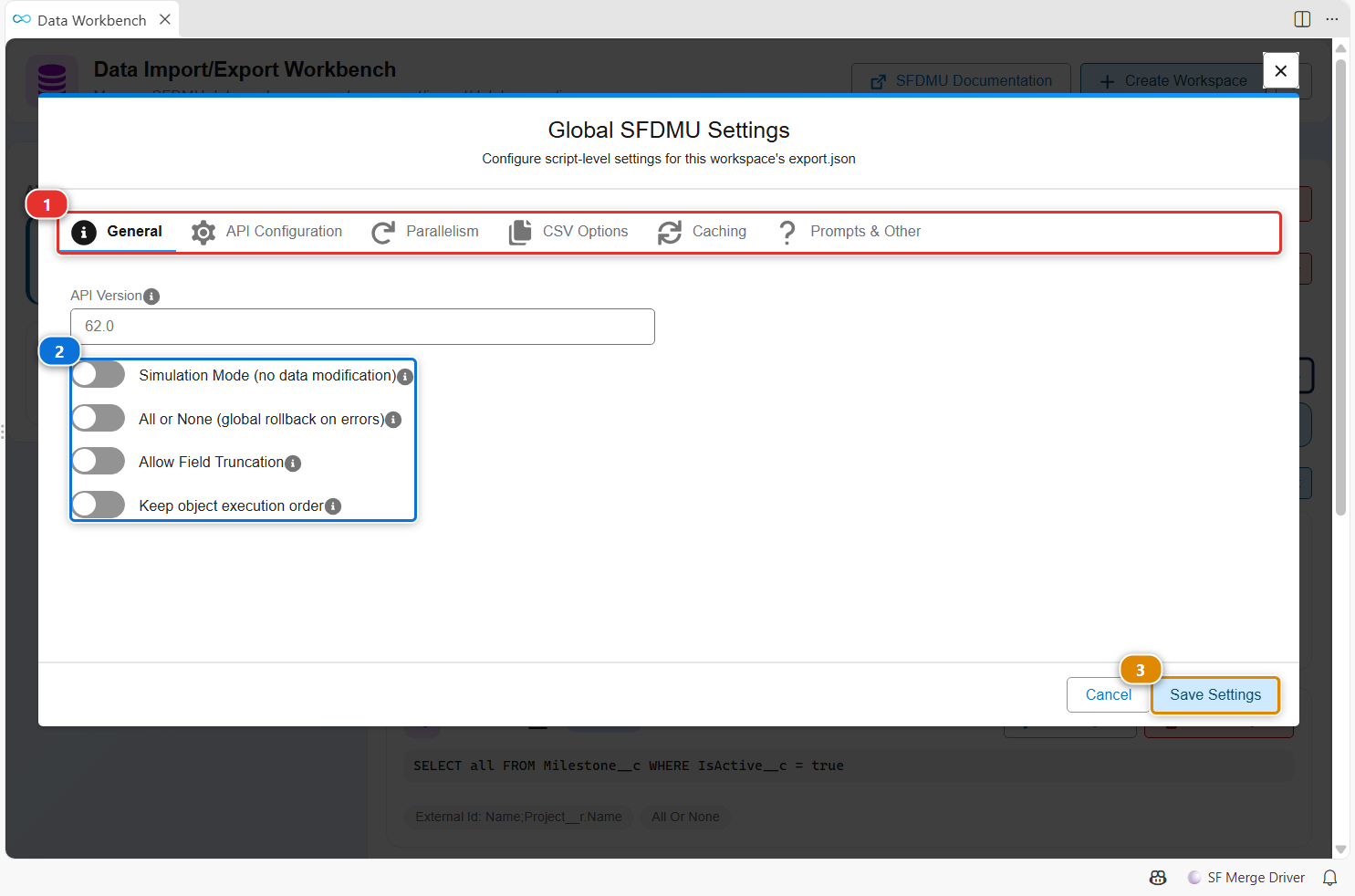
Click Edit Global Settings. The tabs (1) hold the script-level options of SFDMU. The first ones (2) are the most used: simulation mode to test an import without changing anything, all or none to roll back everything on an error. Click (3) to save.
Customize
| What | Where |
|---|---|
| Your workspaces | scripts/data/<workspace>/export.json, edited by the workbench or by hand |
| Run a workspace from a terminal or a pipeline | hardis:org:data:export, hardis:org:data:import, hardis:org:data:delete |
| Import a workspace when a Pull Request is deployed | A Data deployment action |
| Let a coding agent write the workspace | Data Workspaces with AI Coding Agents |