Publish to Confluence
Publish to Confluence
Once your documentation has been generated, you can automatically publish it to Atlassian Confluence.
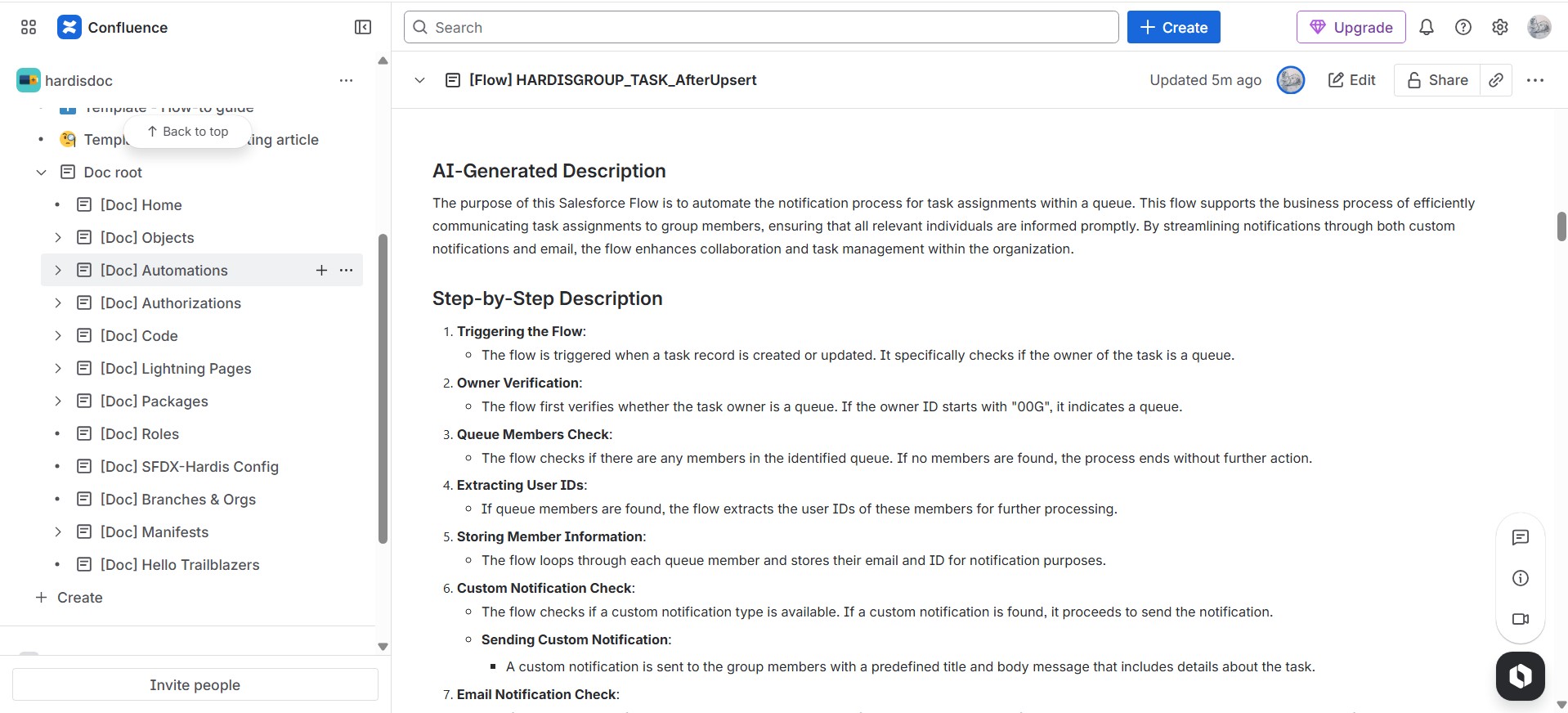
Manually
sf hardis:doc:project2markdown
sf hardis:doc:mkdocs-to-confluence
You can also override Confluence targeting and naming from CLI flags:
sf hardis:doc:mkdocs-to-confluence \
    --confluence-space-key MYSPACE \
    --confluence-parent-page-id 123456789 \
    --confluence-page-prefix "[Doc] " \
    --confluence-page-suffix " [FR]"
From CI/CD
sf hardis:doc:project2markdown --with-history
sf hardis:doc:mkdocs-to-confluence
If using the sfdx-hardis monitoring backup command, set SFDX_HARDIS_DOC_DEPLOY_TO_CONFLUENCE=true and the publish step will run automatically at the end of each backup.
Configuration
Set these environment variables before running the command.
Basic Auth
| Variable | Description |
|---|---|
CONFLUENCE_BASE_URL |
Your Confluence URL, e.g. https://mycompany.atlassian.net |
CONFLUENCE_SPACE_KEY |
The space key where pages will be published |
CONFLUENCE_USERNAME |
Your Confluence email address |
CONFLUENCE_TOKEN |
Your Confluence API token |
OAuth2 Service Account
| Variable | Description |
|---|---|
CONFLUENCE_CLIENT_ID |
OAuth2 client ID from your Atlassian app |
CONFLUENCE_CLIENT_SECRET |
OAuth2 client secret |
CONFLUENCE_SPACE_KEY |
The space key where pages will be published |
Optional
| Variable | Description | Default |
|---|---|---|
CONFLUENCE_PARENT_PAGE_ID |
ID of the page under which all doc pages will be nested | Space root |
CONFLUENCE_PAGE_PREFIX |
Prefix added to every page title to avoid name collisions | [Doc] |
CONFLUENCE_PAGE_SUFFIX |
Suffix added to every page title to avoid name collisions | (empty) |
CONFLUENCE_PUBLISH_CONCURRENCY |
Number of pages published simultaneously | 5 |
Language-specific variables
For these variables, the command first checks a language-scoped env var for the current i18n locale, then falls back to the default variable:
CONFLUENCE_SPACE_KEYCONFLUENCE_PARENT_PAGE_IDCONFLUENCE_PAGE_PREFIXCONFLUENCE_PAGE_SUFFIX
Examples:
CONFLUENCE_SPACE_KEY_FRCONFLUENCE_PARENT_PAGE_ID_NLCONFLUENCE_PAGE_SUFFIX_PT_BR
Tip — finding the parent page ID: open the target parent page in Confluence and look at the URL:
https://mycompany.atlassian.net/wiki/spaces/MYSPACE/pages/**123456789**/My+PageThe number between/pages/and the title is the ID.